
Voice and Video Calling in the Workplace
A practical guide to voice and video calling in workplace apps. Covers use cases, technical basics, security, and how to pick the right features for your team.
Dan Robin

A security officer finishes a late shift and reaches for her phone. She needs the on-call engineer, but the contact lives in one app, the voice call starts in another, and the first two attempts fail before anyone answers. Across town, a hybrid employee books a video room, finds it double-booked, and joins from his phone with one earbud and a weak office signal.
Neither person has a “video conferencing problem.” They have a work coordination problem.
Voice and video calling work well when they meet people where work already happens. That means mobile phones, shared devices, noisy floors, shift changes, poor Wi-Fi, quick decisions, and the occasional meeting where faces and shared visuals matter. It doesn't mean forcing every conversation into a scheduled video conference.
The technology underneath is more capable than it used to be. The experience still depends on practical choices: how calls reach users, how media handles unstable networks, where security boundaries sit, and whether calling belongs inside the employee app rather than in another disconnected tab.
The Call That Wouldn't Go Through
The failed call is rarely caused by one dramatic outage. More often, small decisions pile up. The employee directory sits in one place, chat in another, the phone number is out of date, and the person you need is working a different shift. By the time the call connects, the urgent issue has already become a group of messages and guesses.
This is especially painful for frontline teams. A warehouse associate isn't sitting at a desk with a headset and a calendar open. A nurse may be moving between rooms. A restaurant supervisor may have one hand occupied and only a brief window to reach someone. For these workers, audio-first access and a fast join flow matter more than a polished meeting lobby.
Office teams have their own version of the same problem. A planned video meeting can lose its value when the room is unavailable, a participant's camera won't start, or someone joins from a congested store Wi-Fi network. People often fall back to audio because audio is the part that carries the decision.
Practical rule: If a worker can't start or answer a call from the place where work happens, the feature isn't finished.
The useful questions aren't “Which platform looks most like Zoom?” or “Which tool has the most meeting controls?” Ask instead: How does the call behave on a phone? When is audio enough? When does video earn its cost? What does encryption protect? How does a call connect to chat, tasks, updates, and shift work?
Those questions lead to better choices. Calling should help a security officer reach an engineer, a manager confirm a handoff, and a distributed team resolve a visual problem without making everyone schedule a production.
The rest is plumbing, policy, and judgment.
How Voice and Video Calling Actually Work
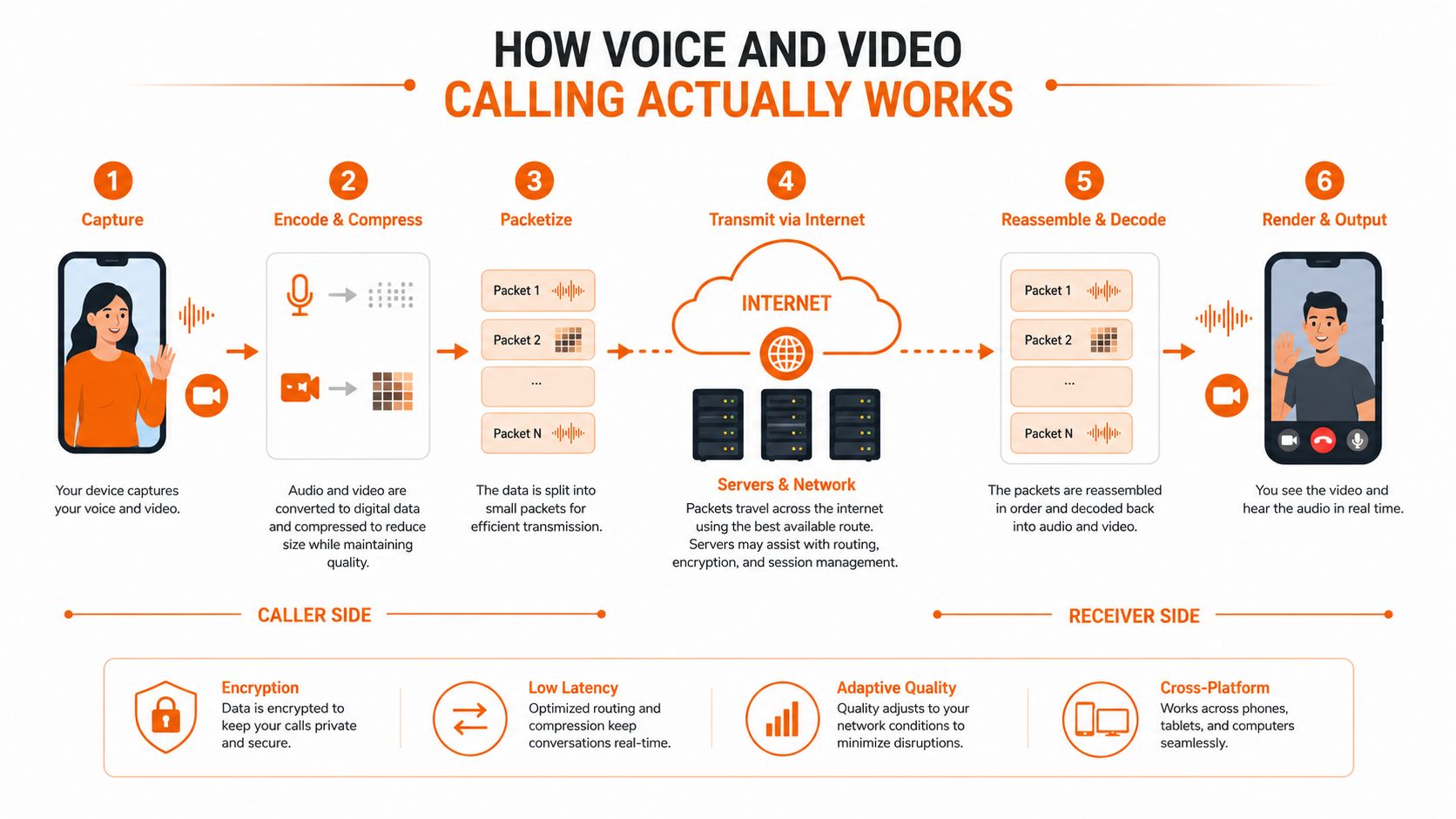
A modern call follows a simple path, even though the machinery underneath is not simple.
First, your device asks to start or join a call. A signaling layer handles that request. It helps identify the other participant, exchanges setup information, and tells both sides how to begin. Signaling doesn't carry the conversation itself. It acts more like the receptionist who helps two people find each other.
Next, the devices negotiate the media. They agree on available microphones, cameras, network paths, and codecs. A codec compresses and decompresses the sound or picture so the call can move efficiently. Voice commonly uses Opus, while video may use VP8, VP9, H.264, or AV1, depending on the browser, device, and service.
The path changes with the network
In the ideal case, media travels directly between participants or through a nearby media server. If firewalls, carrier networks, or corporate policies block that route, the service uses a relay. A relay adds another step, but it can make the difference between a call that connects and a call that never starts.
WebRTC is the common foundation for many browser-based calling experiences and mobile integrations. It gives applications a standard way to capture media, negotiate connections, and handle real-time communication without asking every frontline worker to install a specialized desktop client. That matters when people join from rugged phones, shared kiosks, or personal mobile devices.
The app also adjusts to conditions. Adaptive bitrate lowers or raises video quality as the available network changes. A worker stepping into a cold warehouse with a weak signal may see a softer picture, but the call can remain usable instead of freezing completely. Audio usually receives priority because a clear decision matters more than a sharp image.
Calling features also fit into broader workplace systems. A manager may need to move from a profile to a call, from a message to a task, or from a task to a short huddle. A useful overview of how video conferencing systems fit into workplace communication can help teams think beyond the meeting window. For people preparing for remote interviews, the calls page for job seekers offers another practical example of calling as part of a real workflow rather than an isolated technical feature.
When Audio Wins and When Video Earns Its Place
Video isn't automatically more human. Sometimes it just adds another thing to manage.
Audio should be the default for quick shift check-ins, status updates from a warehouse floor, late-night escalations, screen-reader users, driving situations where local rules permit hands-free communication, and one-to-one conversations where tone carries most of the meaning. It also gives workers a reliable fallback when bandwidth is poor or a camera would expose a distracting environment.
Video earns its place when faces, gestures, or shared visuals change the outcome. That includes design reviews, multi-person planning, customer escalations, onboarding, equipment demonstrations, and conversations where remote participants need to read the room. A new hire may understand a process more quickly when someone shows it, rather than describing it.
Scenario | Best Mode | Why | Watch Out For |
|---|---|---|---|
Quick shift handoff | Audio-first | Fast to start and easy to use while moving | Don't turn a simple update into a scheduled meeting |
Warehouse or retail status check | Audio-first | Keeps attention on the work and tolerates weaker connections | Background noise can hide key details |
Design review | Video-first | Faces and shared visuals help people react together | Poor screen sharing can erase the benefit |
Customer escalation | Video-first | Facial cues can support trust and de-escalation | Camera pressure can make the conversation less natural |
New-hire onboarding | Video-first | Presence and demonstration help build context | Keep the session focused and provide async material |
Decision confirmation followed by team alignment | Hybrid | Voice settles the immediate point, video gives the wider group shared context | Don't make both calls longer than needed |
Mobile data and congested store Wi-Fi make unnecessary video expensive in attention as well as bandwidth. A short operational call often doesn't need it. Requiring cameras for every interaction also creates privacy and accessibility problems.
The most practical pattern is often hybrid. Two people use a quick voice call to confirm the decision. Then they open a short video huddle when the wider team needs to see the people, screen, or object involved. Use video for shared understanding, not proof of attendance.
The Technical Plumbing Behind a Smooth Call
A smooth call starts at the microphone. The device captures sound, removes some unwanted noise, and passes it to a codec such as Opus. The codec turns that audio into packets, which travel across a network before the other device decodes them and plays them through a speaker.
Video follows the same broad route, but it carries more information. A codec such as H.264 compresses camera frames, and the system sends enough detail for the receiver to reconstruct a moving picture. When conditions worsen, adaptive bitrate can lower resolution or frame quality. That trade is healthy. A slightly blurry face is better than a frozen call.
Four network conditions users feel
Bandwidth describes how much data the connection can carry. Microsoft documents recommended bandwidths of 500 Kbps for peer-to-peer audio, 1.2 Mbps for HD 720p video, and 1.5 Mbps for HD 1080p video in its documented calling guidance, summarized in this technical discussion of VoIP call quality. Those figures aren't a promise that every call will be perfect. They show why video needs more room than voice.
Latency is delay. Conversation feels awkward when each person waits too long for the other side's words. Jitter is variation in packet arrival time. A connection can have plenty of nominal bandwidth and still sound choppy if packets arrive in bursts.
A jitter buffer holds packets briefly and releases them in a steadier stream. That small delay can prevent syllables from arriving out of order. Packet loss is different. Lost packets leave holes, which listeners hear as clipped speech, missing words, or broken video.
Microsoft's definitions make the distinction useful: latency delays the conversation, jitter disrupts timing, and packet loss removes pieces of it. Teams should monitor all three instead of treating bandwidth as the only quality signal.
Network design matters as much as codec choice. WebRTC guidance commonly favors direct UDP paths where possible, with relay support when direct connectivity fails. Operational guidance recommends allowing broad UDP media ranges such as 50000 to 60000 and using TURN relay support on UDP 3478 when needed, as described in this WebRTC network tuning guide. High packet loss can damage perceived video quality sharply, so active monitoring beats waiting for users to complain.
What Secure Calling Really Means in Practice
“Encrypted calling” is too vague to guide a rollout. A team needs to know what is encrypted, where it is encrypted, and who can still access it.
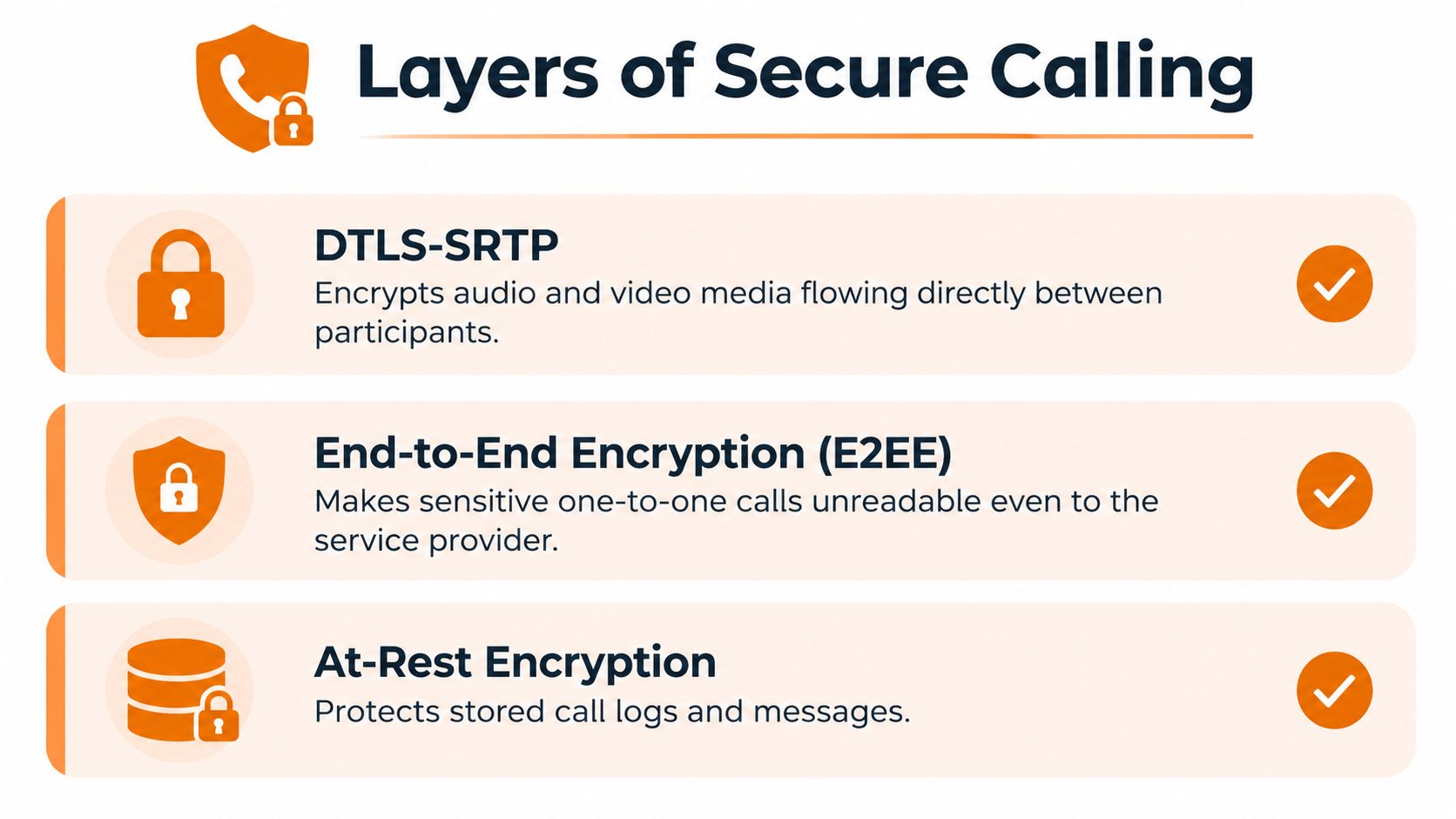
WebRTC requires media protection through SRTP. Its security architecture doesn't permit implementations to negotiate unencrypted RTP or RTCP or use cipher suites with NULL encryption modes, as specified in RFC 8827. That gives the basic media path a secure foundation.
It doesn't secure the whole application.
The trust boundary matters
Signaling is the setup path. It helps participants discover one another and exchange the information needed to establish a call. WebRTC itself doesn't automatically secure that layer, so the application must protect signaling with mechanisms such as TLS or WSS. A weak signaling path can expose setup information or enable impersonation even when the media channel is encrypted, a distinction explained in this plain-language guide to WebRTC security.
End-to-end encryption changes the trust boundary again. With E2EE, participants encrypt media on the sender's device and decrypt it only on the recipient's device. The service provider and intermediary servers can't read the call content, as described in this explanation of E2EE in WebRTC.
That choice has trade-offs. Server-based routing can help with group calls, recording, moderation, and network reachability. But if a server must process readable media for those features, it sits inside the content trust boundary. A selective forwarding unit can route encrypted streams without necessarily decoding them, but the exact protection depends on the implementation and key design.
A practical security review should ask:
Account protection: Is MFA enforced, especially for supervisors and administrators?
Call controls: Can administrators control recording and participant permissions?
Auditability: Are call metadata and administrative actions logged?
Retention: Do teams know how long recordings, logs, and messages remain available?
Sensitive conversations: Can users choose E2EE when the service must not read the media?
For regulated workflows, teams may also need a focused review of HIPAA-compliant messaging requirements. Security isn't a badge on a product page. It's a set of boundaries your IT team can explain and defend.
Calling Inside a Unified Workplace App
Calling becomes useful when it follows the work instead of pulling people away from it.
A manager sees an employee's profile and starts a call. A supervisor sends a voice note when typing is inconvenient. A safety update in a team thread turns into a short huddle because the written replies aren't resolving the issue. After the call, the team returns to the same conversation, task, or update instead of trying to reconstruct what happened in a separate meeting tool.
That flow matters for frontline workers. They don't think in terms of “launching a conference.” They think, “I need to reach the person responsible for this.” Profiles, chat, updates, tasks, and Spaces give that request a natural home.

The handoff is the product
A call that ends without a record creates another problem. Someone has to remember the decision, tell the next shift, attach a file, or create a task. A unified employee app can keep those actions close to the conversation.
Pebb, for example, combines chat, voice and video calls, updates, tasks, file sharing, and configurable Spaces in one employee app. Its mobile and web access also fits teams that work across phones, shared locations, and office devices. The important point isn't the number of features. It's whether a worker can move from a call to the next action without changing context.
This is the difference between integrated calling and a bolted-on meeting tool. In the integrated model, the call belongs to a person, thread, task, or Space. In the bolted-on model, the call creates a new destination, a new notification stream, and another place where information can disappear.
A useful explanation of what a unified communications platform includes can help leaders evaluate that broader model. But integration can also go wrong. If every message triggers a call invitation, notifications become noise. If the app hides important controls behind a crowded interface, frontline workers stop trusting it.
Good integration reduces steps. Bad integration adds another layer. The test is simple: can someone start the right kind of conversation, finish it, and leave the next shift with enough context to act?
Choosing and Rolling Out Calling Features
Buying a calling feature is easier than making people use it. Most failures happen after procurement, when the product meets real shifts, real networks, and real habits.
Start with the workforce, not the vendor demo. Separate deskbound employees from frontline workers. Note which teams use shared devices, which rely on mobile networks, which work overnight, and which conversations need quick audio instead of scheduled video. A polished office demo tells you very little about a delivery team standing behind a building or a supervisor moving through a busy floor.
Use three decision filters
Reliability comes first. Test calls on poor mobile connections, congested Wi-Fi, older phones, and the devices employees carry. Check whether audio remains available when video degrades, whether users can rejoin quickly, and whether relay paths work behind restrictive networks.
Security must be explainable. Ask where signaling is protected, how media is encrypted, whether E2EE is available for sensitive calls, who can record, and how retention works. “Enterprise-grade” isn't an answer. Your IT team should be able to describe the trust boundary in plain language.
The call must sit beside the work. A tool that connects perfectly but strands decisions in a separate meeting history will create cleanup work. Look for direct paths from profiles, chat, updates, tasks, and team areas.
Pilot with two teams that represent your extremes, not your friendliest volunteers. Use one office-heavy group and one frontline or mobile-heavy group. Track time to first call, dropped-call rate, and continued use six weeks after the pilot. Those measures tell you more than a feature checklist.
Train around situations: “Call the on-call engineer,” “start an audio handoff,” “turn a thread into a huddle,” and “leave the decision in the task.” For teams reviewing phone infrastructure, these VoIP phone system setup tips offer useful practical context. Then keep instrumentation in place. A feature can meet every requirement and still lose the daily habit.
Beyond Connection, Toward Better Conversations
Calling isn't solved because two people can hear each other. The test is whether the conversation helps someone act without creating another hour of follow-up.
The debate about video fatigue needs more precision. A 2026 clinical study of 125 participants across 590 days and 945 meetings found that video meetings were unrelated to exhaustion or passive fatigue, according to the study record on PubMed. That conflicts with older assumptions, but it doesn't mean fatigue is imaginary. Other recent reporting found that about 49% of remote professionals reported significant video call fatigue, while 55% of UK hybrid workers said they experienced it, with younger employees affected more strongly, as summarized in the same source.
The useful conclusion isn't “video is good” or “video is bad.” Meeting design matters. An agenda-free call, a camera requirement with no purpose, and a meeting that runs past its decision can drain people in any medium.
Optimize for the handoff
A good workplace app should make the smallest effective conversation easy. That might be a voice call, a short video huddle, a voice note, three messages, or a task with a clear owner. The app should help people choose, not push every problem toward a meeting.
The market is also moving toward assistants, summaries, and context-aware meeting features, so the next improvement won't come only from sharper video. It will come from preserving decisions, reducing repeated explanations, and helping the next shift understand what changed.
The best call is often the one that ends with a clear owner, a short update, and no second meeting.
That is the standard I'd use. Don't optimize for camera time. Optimize for reliable participation, useful context, and fewer interruptions. Give frontline workers audio when audio is enough. Give office and distributed teams video when shared presence or visuals change the result. Then let the conversation return to the work.
Pebb brings chat, voice and video calls, updates, tasks, file sharing, and configurable Spaces into one employee app for frontline and office teams. Visit Pebb to see how a unified workplace app can help your people start the right conversation and carry the decision into the next action.
