
How to Set Up Video Conferencing That Actually Works
Learn how to set up video conferencing for your entire team, from offices to frontline staff. A practical guide on platforms, hardware, security, and adoption.
Dan Robin

The meeting starts late. Someone in the room can't be heard, the remote team sees a frozen frame, and the shift supervisor joining from a phone gives up after the second failed tap. None of this happens because people don't care. It happens because most video conferencing setups are built for a tidy demo, not for the mess of real work.
I've seen this play out in boardrooms, breakrooms, and warehouse offices. The pattern is always the same. Teams spend money on cameras and screens, then act surprised when meetings still feel fragile. The hardware matters, but it's rarely the thing that breaks the experience.
If you want to understand how to set up video conferencing so it works, start with a less glamorous idea. You're not setting up a room. You're setting up a habit that needs to hold across different locations, different devices, and different levels of comfort with technology.
The Part Most Guides Skip
A lot of advice on video conferencing starts with equipment. Buy a better webcam. Add a nicer microphone. Mount a bigger display. That advice isn't wrong. It's just incomplete.
Video conferencing is already a normal part of business. Zoom's 2025 business statistics summary says video conferencing reached about 66% market penetration in 2024 in its video conferencing statistics roundup. At that scale, the challenge changes. You no longer need a clever setup for one conference room. You need repeatable standards that work across offices, homes, and operational sites.
Hardware doesn't fix workflow
The most painful failures usually aren't technical in the strict sense. They're operational.
A room works fine when the IT lead is there to launch the call. It fails when a store manager walks in three minutes before a shift handoff and doesn't know which remote to use. A home office looks polished until a new hire has to join training from a personal phone. A warehouse kiosk is installed, then ignored, because no one decided who owns support when the headset disappears.
Practical rule: A good meeting setup is one that the least technical person on your team can use without asking for help.
That's why the usual “perfect room” checklist misses the point. Most companies don't have one kind of worker. They have desk-based staff, mobile managers, field teams, temporary workers, and frontline employees who don't live in a browser tab all day. If your setup assumes everyone has a laptop, a calendar invite, and ten quiet minutes before each call, it's going to fail.
Reliability is a people problem first
Key considerations involve deciding how meetings start, who supports them, what device people should use in each setting, and what happens when conditions aren't ideal. That includes the boring questions. Where does the join link live? Who can book the room? What's the fallback if the video drops? Which calls need a room system, and which should just be a phone join from the floor?
Many teams don't need a more impressive setup. They need a calmer one.
That means fewer choices, simpler joining, and a standard way to run calls across the whole company. Once you treat video conferencing as an operational system instead of a gadget purchase, the rest of the decisions get easier.
Choosing Your Platform Wisely
Platform choice looks like a software decision. It's really a workflow decision. You're deciding whether meetings will live inside the flow of work or sit off to the side as one more app people have to remember.
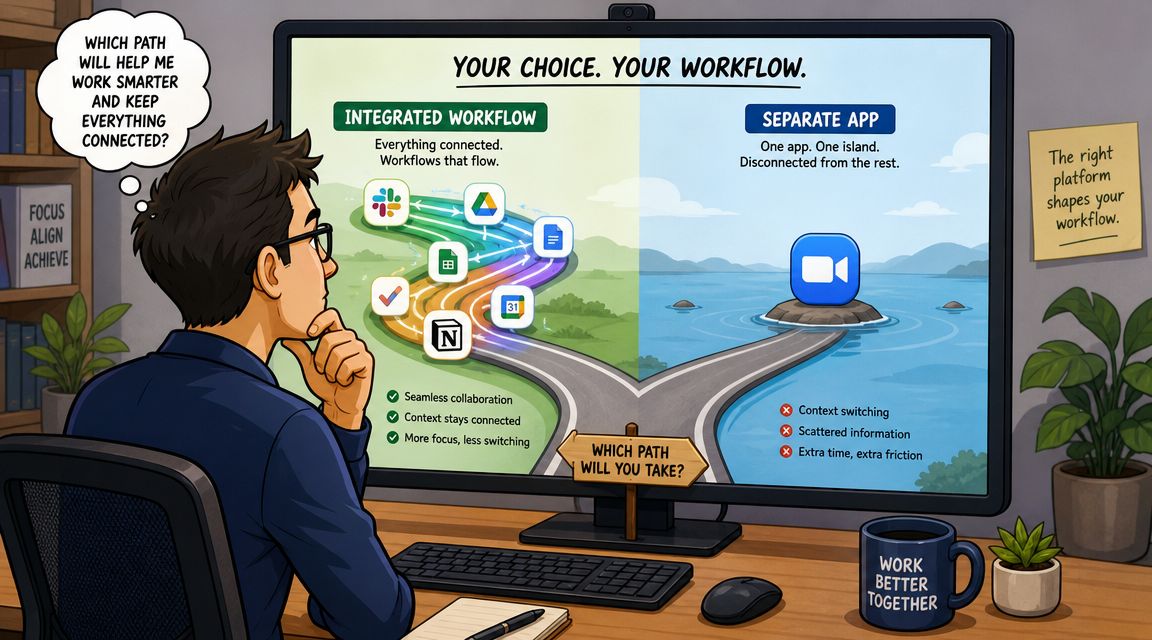
For office teams, a standalone video app can be fine. People have laptops, email, calendars, and a regular rhythm. For blended teams, that model breaks down fast. RingCentral's 2025 global work trends survey, cited in this video conferencing setup guide, found that employees split time across office, home, and field locations, while many organizations still struggle to standardize meeting access and support. That matches what operators run into every day. The problem isn't whether the app supports gallery view. It's whether people can get into the meeting without friction.
Standalone app or integrated platform
This is the trade-off in plain terms:
Approach | What works | What usually goes wrong |
|---|---|---|
Standalone video app | Familiar for desk-based staff, often strong meeting features | Join links get buried, frontline staff need extra steps, support sprawls across tools |
Integrated work platform | Video sits next to chat, tasks, updates, and team spaces | You need to be more deliberate about rollout and governance |
If you're comparing tools, don't start with effects, layouts, or background blur. Start with access.
Ask a few blunt questions:
Can a frontline employee join from a phone fast? If it takes too many taps, they won't use it when things get busy.
Does video connect to the rest of work? Meetings that sit apart from chat, announcements, and tasks tend to create follow-up chaos.
Can admins manage permissions with ease? If administration is messy, the system drifts fast.
Does the tool fit shared-device use? Breakrooms and kiosks expose weak design very quickly.
The simpler path usually wins
For many companies, especially those with mobile and operational teams, an integrated setup is easier to sustain. It reduces the number of places people have to check and the number of passwords they forget. If you want a deeper primer on that model, this guide on what a unified communications platform is is useful.
That's also where a tool like Pebb can make sense. It combines chat, calls, tasks, updates, and team spaces in one app, which is often a better fit for organizations that don't want video conferencing to live as a separate habit.
The best platform is usually the one people can join from without thinking about it.
I'd choose boring consistency over flashy meeting features almost every time. A platform people use beats a platform people admire.
Designing Your Meeting Spaces
A meeting space isn't always a conference room. Sometimes it's a proper room with a display and room bar. Sometimes it's a desk in a spare bedroom. Sometimes it's a shared tablet near the production floor.
That's why how to set up video conferencing has to start with the environment, not the app.
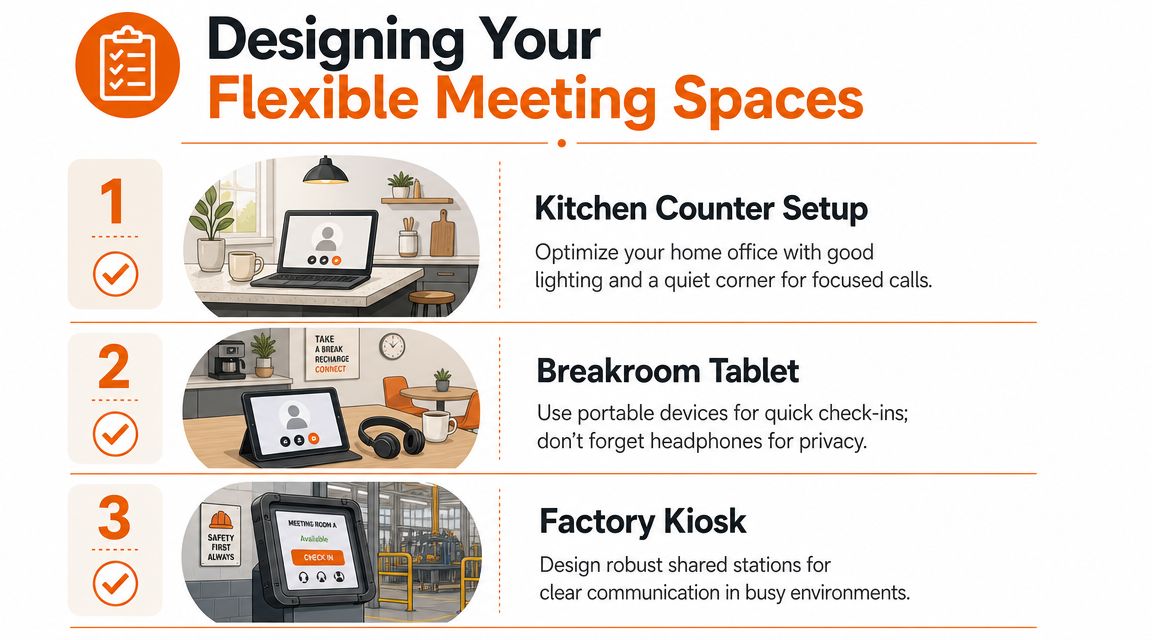
Sennheiser's room design guidance lays out the right sequence in its step-by-step video conferencing setup guide. Define the room's use case and headcount first, then choose the platform, then place the camera near eye level beside the main display, and then configure audio. That order matters because poor camera placement and mismatched audio are common failure points.
Dedicated conference rooms
The biggest mistake in conference rooms is buying equipment before deciding what the room is for. A six-person weekly check-in room needs something different from a training room, an executive room, or a client-facing room.
Start with a few plain decisions:
What kind of meeting happens here most often
Internal team calls, customer calls, interviews, training, and hybrid all-hands sessions place different demands on the room.How many people will usually be in the room
Not maximum occupancy. Usual occupancy. Design for the usual pattern.Will people share content often
If yes, make content sharing effortless. If not, don't overbuild.
Once that's clear, place the display where everyone can see remote participants and shared material. Mount the camera near eye level beside the main display so people appear to be looking at one another instead of off to the side. Audio comes next. That's where a lot of rooms fall apart. A nice camera can't save a room where one person sounds distant and another booms because the mic pickup doesn't match the table layout.
A short rule I trust: if remote attendees have to work hard to understand the room, the room is badly designed.
Home offices
Home setups don't need to be fancy. They need to be stable and repeatable.
A practical home setup usually looks like this:
Good enough means a laptop, decent natural light, and a quiet corner where the camera is at something close to eye level.
Better adds a separate webcam or headset if built-in audio is unreliable.
Best for frequent calls is a fixed spot with predictable lighting, a proper mic or headset, and a simple background that doesn't distract.
People often overthink the camera and underthink the environment. If the person on the other end can hear you clearly and see your face without harsh backlight, you're already ahead of a lot of setups.
Frontline spaces
Most guides fall silent at this juncture. Frontline meeting spaces need to survive shared use, noise, and time pressure.
A breakroom tablet for quick manager check-ins should be mounted or stored in a known place, kept charged, and tied to a clear joining method. A shared kiosk near operations should use durable hardware, obvious prompts, and accessories that don't wander off. If privacy matters, include headphones. If the area is noisy, don't expect open speakers and far-field mics to perform well.
A shared device that anyone can use in ten seconds is worth more than a premium setup that needs a power user.
Consistency matters more than elegance here. If every site uses a totally different setup, support becomes guesswork and adoption drops.
The Network and Security Reality Check
The fanciest conference room in the building becomes useless the second the network gets shaky. When people say “the platform is bad,” they're often describing a network problem.
Think of bandwidth like lanes on a highway. Every video participant adds traffic. If too many streams try to squeeze through too few lanes, things slow down, stutter, or stop.
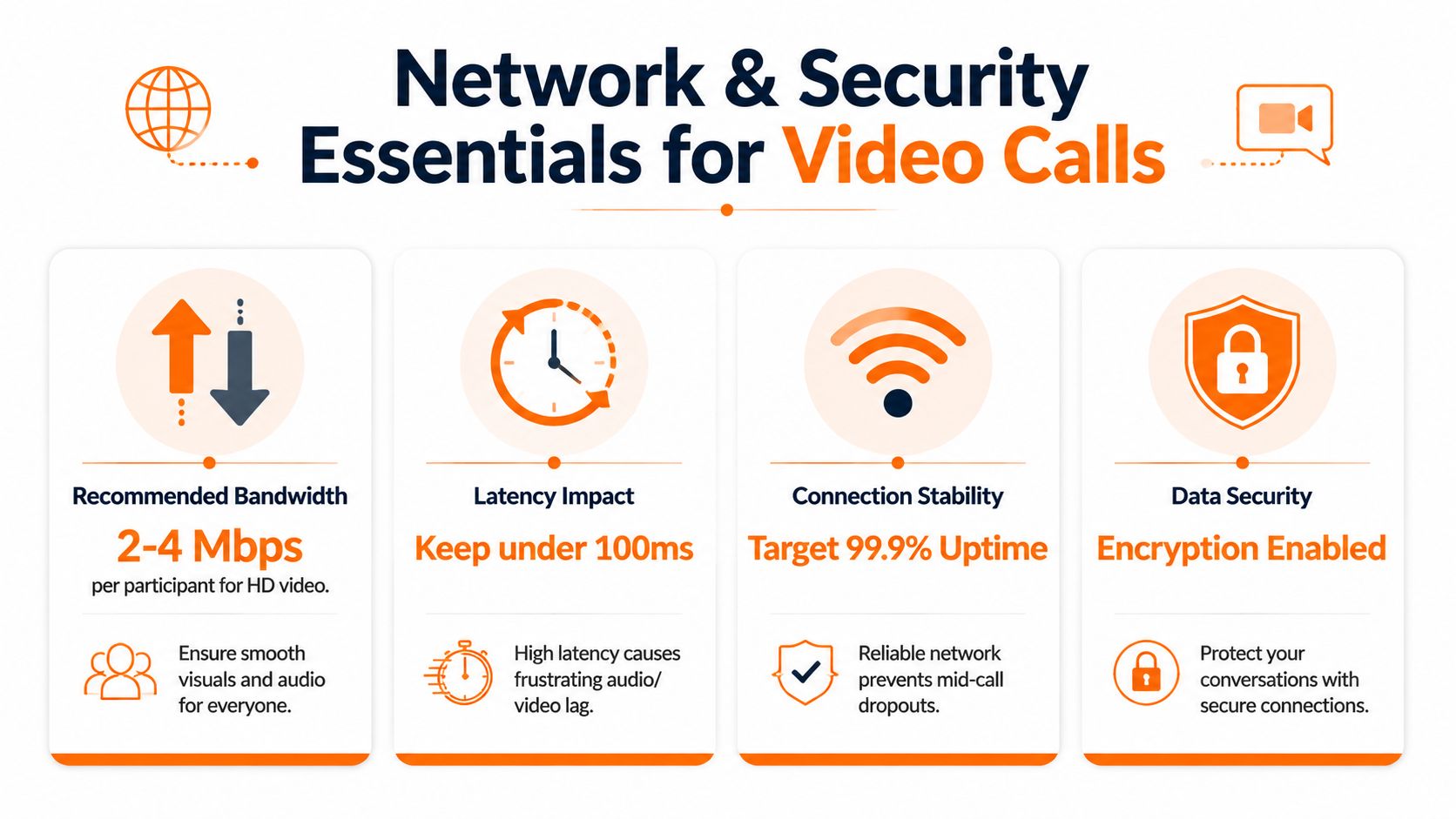
Industry guidance compiled in 2026 recommends planning for 2 to 3 Mbps of upload and download bandwidth per HD video participant, with 6 to 8 Mbps per 1080p multi-stream and 25 to 30% headroom for variability, according to this video conferencing bandwidth guide. The same guidance says a room hosting a call with 5 remote participants should reserve at least 15 Mbps just for that meeting, which helps prevent frozen video, dropped audio, and unstable screen sharing.
Wired beats hopeful
For room systems, I strongly prefer wired Ethernet over Wi-Fi. It removes one big source of variability. People can use Wi-Fi on laptops and phones, of course, but the fixed room hardware should be as stable as you can make it.
NEAT's conference room guidance also recommends wired Ethernet for room systems, along with practical infrastructure like cable management, protected power, and testing before launch. I'm not repeating that source here because the bigger point is operational. Loose cables and unstable power create the kind of failure that makes users blame the whole system.
Use this quick check with your IT team:
Reserve bandwidth for the room itself so meetings aren't competing blindly with everything else on the network.
Add headroom because real traffic isn't neat.
Prefer wired room connections whenever possible.
Test with multiple participants instead of assuming a one-person test proves anything.
Design for bad conditions, not ideal ones
A resilient setup doesn't assume everyone has perfect internet. Guidance summarized from the UK's National Cyber Security Centre and Ofcom notes that connectivity quality varies widely, and video apps need adaptive bitrate and audio-first fallback to stay usable in real conditions. That's the useful standard. Not perfection. Graceful degradation.
If your team includes travelers, field staff, or international employees, network conditions will vary by country and provider. For teams dealing with access issues abroad, this guide to secure internet for professionals in China is a practical example of the broader point: your meeting setup has to account for where people work, not just the network in headquarters.
Security basics people will actually follow
Security matters, but it only works if the rules are simple enough that people use them.
A short baseline is usually enough:
Control | Why it matters |
|---|---|
Waiting rooms or lobby controls | Helps keep unexpected participants out |
Meeting passwords when appropriate | Useful for private or external calls |
Single sign-on | Reduces account sprawl and access mistakes |
Role-based permissions | Limits who can host, share, or record |
If you need a broader framework, this guide to remote team data security is a solid companion to the operational side of meetings.
Good security should feel normal. If it feels like a maze, people will route around it.
The Human Side of Governance and Training
A bad rollout usually sounds like this: “We installed the room kits, sent one email, and assumed people would figure it out.” They won't. Not because they're careless. Because work is busy, shifts are messy, and nobody wants to be the person holding up a meeting.
The companies that do this well don't create a giant policy document. They create a few rules that are easy to remember and easy to teach.
What the better rollout looks like
One operations team I worked with had the usual symptoms before they got serious. Managers used different apps in different sites. Join links lived in chat threads, emails, and text messages. Shared room devices worked, but only if the one person who understood them happened to be on shift.
Another team took a different route. They made a one-page guide. It covered when to use video instead of chat, how to start a room meeting, where links should live, what to do when audio fails, and who owns support in each location. Nothing fancy. Just enough clarity to remove hesitation.
The difference wasn't technical. It was behavioral.
The fastest way to improve meeting quality is to remove uncertainty before the meeting starts.
Train for real people, not ideal users
Desk workers can usually learn by clicking around. Frontline teams often need a different approach. Show them on the device they'll use. Keep the training short. Repeat it where work happens.
A few patterns help:
Use short scenario-based training instead of long walkthroughs. “How to join the daily handoff from the breakroom tablet” lands better than a generic platform tour.
Train managers first because everyone else copies local behavior.
Make fallback normal so people don't panic when video quality drops. Audio-only participation should feel acceptable, not like failure.
Build onboarding into existing routines rather than expecting employees to learn a new tool in their own time.
For teams that need a structured way to teach this, video training software can help turn repeat questions into simple, reusable guidance.
Governance should reduce friction
Governance sounds heavy, but it doesn't need to be. Good governance answers practical questions before they become support tickets.
Who creates recurring meetings. Who can use shared devices. Where recordings live. Which teams get dedicated rooms and which just need mobile access. What the support path is when the issue happens five minutes before shift change.
The resilience point matters here too. Connectivity varies, and the best setup includes adaptive bitrate and audio-first fallback so people can still participate when conditions are weak, as noted in the earlier guidance. That's not just a network choice. It's a people choice. You're deciding that inclusion matters more than pristine video.
A Calm Guide to Troubleshooting
When a call goes sideways, people start changing random settings. That usually makes things worse. Calm troubleshooting works better.
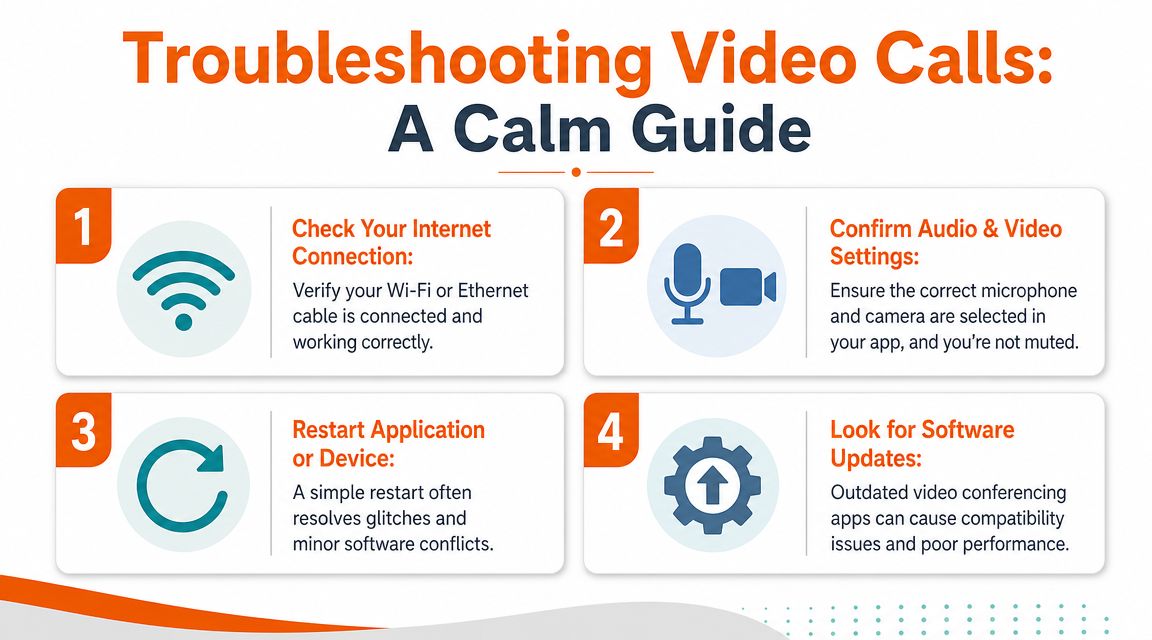
Most problems fall into four buckets. No sound. No microphone. Frozen video. Screen sharing fails. You can solve a surprising number of them with a short sequence.
Start with the obvious
Use this order:
Check mute, camera, and device selection
Many failures are just the wrong microphone, speaker, or camera selected in the app.Check the connection
If Wi-Fi is weak, move closer to the access point or switch to a more stable connection. In fixed rooms, confirm the wired connection is still live.Restart the app
Not five settings. The app. A clean restart fixes a lot of odd behavior.Restart the device if the problem persists
This clears the small conflicts that build up unnoticed.
Match the symptom to the fix
A simple mental map helps:
Problem | Check first | Then try |
|---|---|---|
You can't hear anyone | Speaker output in app and system settings | Leave and rejoin the call |
No one can hear you | Mute button and selected microphone | Reconnect headset or switch devices |
Video is frozen | Network quality and camera access | Turn video off, rejoin, then restore |
Screen sharing won't start | App permissions and selected window | Restart app or device |
If the issue is specifically a browser camera problem, this walkthrough on webcam troubleshooting in Chrome is a helpful reference to send people instead of trying to coach every step live.
Don't troubleshoot everything at once. Change one thing, test it, then move on.
That last part matters. Video conferencing doesn't need to be perfect to be useful. It needs to be dependable enough that people trust it. That trust comes from simple joining, sensible room design, resilient network choices, and a few clear rules that make the whole system feel ordinary.
And that's the actual target. Not flawless meetings. Just fewer avoidable failures, and more moments where people can get in, talk, decide, and move on.
If your team is trying to bring chat, video calls, updates, tasks, and mobile access into one place, Pebb is worth a look. It's built for both office and frontline teams, which makes it a practical fit when you need video conferencing to work beyond a single polished conference room.
