
10 Best Add Ons for Google Calendar in 2026
Discover the 10 best add ons for google calendar in 2026. Enhance your productivity, streamline scheduling, and get more from your calendar with these top
Dan Robin

Your calendar usually breaks before your team does.
It starts small. A missing meeting link. A handoff that lives in chat but never makes it into the event. Two managers booking the same person because nobody saw the update in time. If you're juggling frontline coverage, sales calls, hiring screens, and internal meetings, basic reminders aren't enough anymore. You need add ons for Google Calendar that pull the rest of your work into the same place.
Google built Workspace add-ons to extend Calendar without forcing people to bounce between tabs. The whole point is to let users interact with third-party systems inside Calendar itself, with interfaces that appear where they're needed in the flow of work, according to Google's Calendar add-ons documentation. That shift matters more than is commonly understood.
And if your team travels, works remotely, or deals with regional access issues, it also helps to understand the broader access picture in tools around Google. Throughwire's China Google guide is useful context for that reality.
The market has matured, too. One review of the current ecosystem says there are at least eight top-rated Google Calendar productivity tools in play by 2026, spanning time tracking, task management, and power-user workflow gaps, as covered in Pumble's overview of Google Calendar extensions.
1. Microsoft Teams Meeting

If your company lives in Microsoft Teams but still uses Google Calendar as the daily control panel, this add-on makes sense fast. It lets people add Teams conferencing to a calendar event without leaving Calendar, which is exactly the kind of friction removal that matters when nobody has time for another tab.
I like this one best in mixed environments. IT can roll it out across a domain, and employees don't need to learn a new scheduling habit just to get a Teams link into an invite. This offers a significant benefit. Less retraining, less confusion.
Where It Works Best
Microsoft Teams Meeting is strong when the company has already standardized on Teams for chat and meetings, but Google Workspace still owns the calendar layer. You create the event in Google Calendar, drop in Teams details, and move on.
That said, it's not magic. Meetings created through the add-on live in Google Calendar. They aren't automatically mirrored into Outlook by default. If your organization expects full two-way harmony between every Microsoft and Google surface, this can feel thinner than expected.
Practical rule: Use this add-on when Google Calendar is your scheduling front end and Teams is your meeting room. Don't use it as a workaround for a messy Microsoft-Google coexistence strategy.
A few quick trade-offs matter:
Best fit: Teams-first organizations that don't want users copying links by hand.
Big upside: Official Microsoft support and straightforward deployment through the marketplace.
Main limitation: Users still need a Teams work or school account, and some guest scenarios may need extra care.
If that matches your setup, Microsoft Teams Meeting for Google Calendar is a practical install.
2. Zoom for Google Workspace
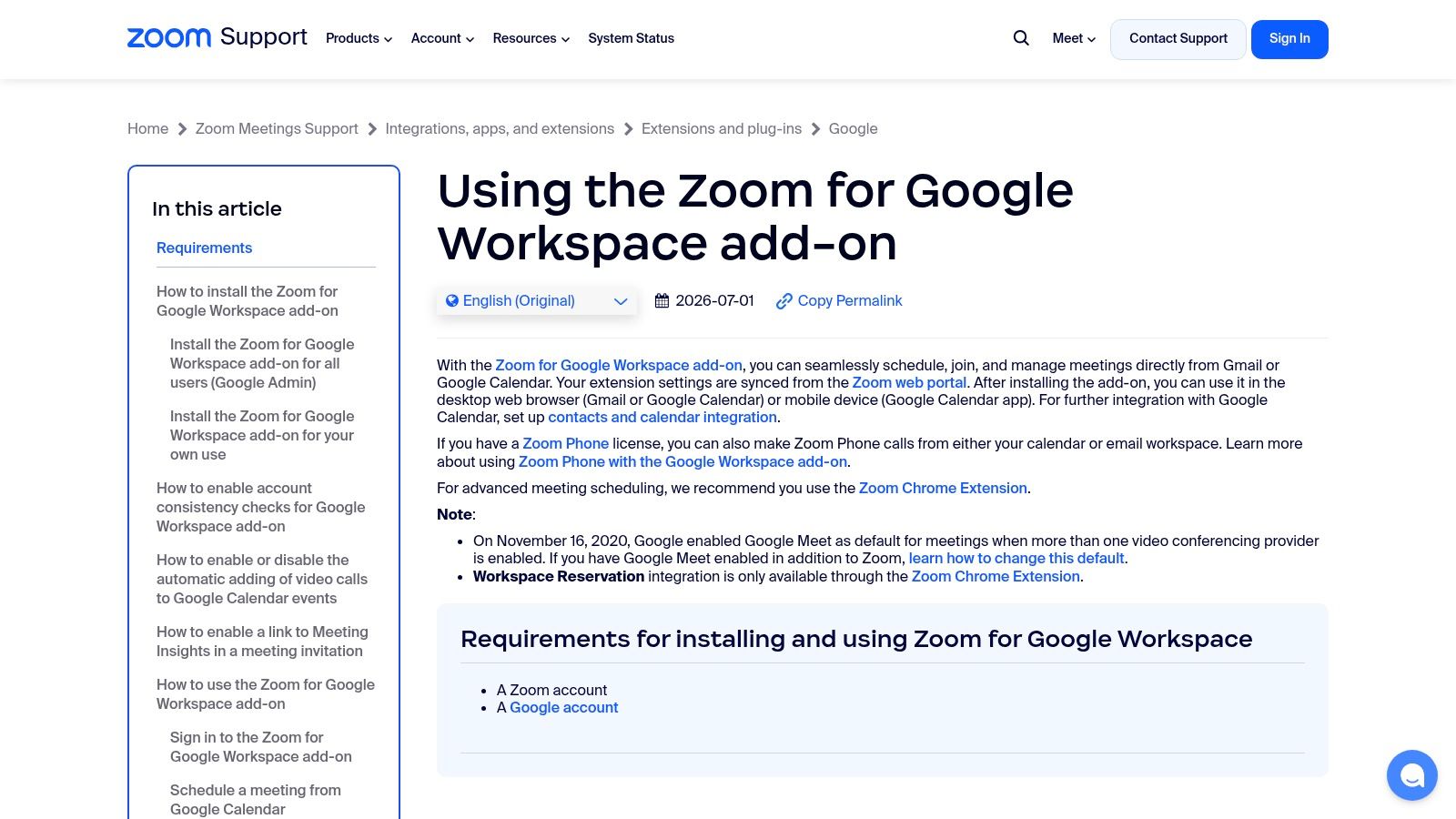
Zoom is still the easiest answer in a lot of companies because everyone already knows what a Zoom link is. That familiarity counts. When a tool disappears into habit, adoption takes care of itself.
The Google Workspace add-on puts Zoom inside Calendar and Gmail so people can create and manage meetings from the sidebar. For teams that still copy and paste links into event descriptions, this is one of the quickest quality-of-life fixes you can make.
The Real Trade-off
The good part is obvious. You reduce manual work and cut down on broken invites. The less obvious part is governance. Some organizations need admin allowlisting before staff can install the add-on, and advanced features still depend on your Zoom plan.
If your team is standardizing video across departments, it helps to pair the add-on with a simple internal playbook. Pebb's guide to setting up video conferencing is a useful companion because the add-on itself solves insertion, not policy.
The strongest conferencing add-ons aren't the ones with the longest feature list. They're the ones your team will actually use the same way every day.
This one is ideal for Zoom-first teams, client-facing groups, and companies that don't want invite quality to depend on whether someone remembered to paste the right meeting URL. It's less compelling if Google Meet is already your default and nobody's asking for an alternative.
You can review the official setup details in Zoom for Google Workspace support.
3. Cisco Webex for Google Workspace
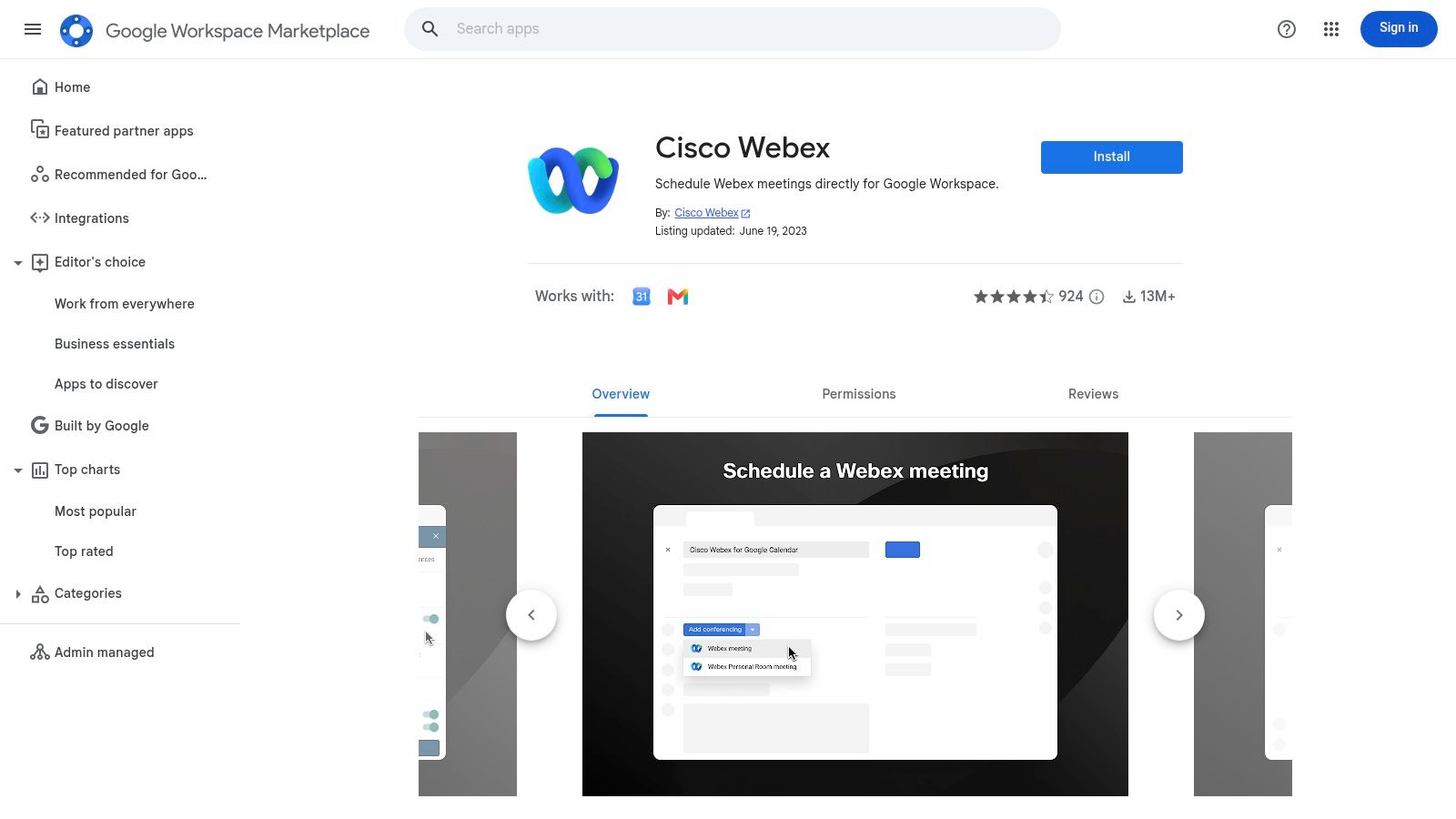
Webex doesn't win on hype. It wins when the room itself matters.
If your company has invested in Webex hardware, meeting rooms, and enterprise controls, the Google Workspace add-on is less about convenience and more about keeping the whole stack connected. It lets users insert Webex details into Google Calendar events and work from both Calendar and Gmail, while admins keep control in Webex Control Hub or Site Admin.
Best for Room-Based Meeting Cultures
This is one of the few add ons for Google Calendar where hardware can change the buying decision. In companies with conference room devices and tap-to-join habits, Webex fits better than lighter tools that only think about personal desktop meetings.
That doesn't mean setup is effortless. Webex often asks more from admins on the front end. Users also need the right Webex account and licensing setup for the experience to feel complete.
Why teams choose it: It plays well with Webex rooms and enterprise meeting infrastructure.
Why some teams skip it: Admin configuration can feel heavier than lighter conferencing add-ons.
Who should care most: IT-led organizations that value consistency across rooms, devices, and meeting policies.
One broader trend helps explain why this category keeps growing. The global calendar app market is projected to grow at about a 10.4% CAGR from 2026 to 2034, driven by demand for integrated scheduling and automation. Webex fits that story well. It's not trying to be cute. It's trying to keep scheduling, rooms, and meetings from drifting apart.
For Webex-based organizations, Cisco Webex for Google Workspace is worth the admin effort.
4. RingCentral for Google Workspace
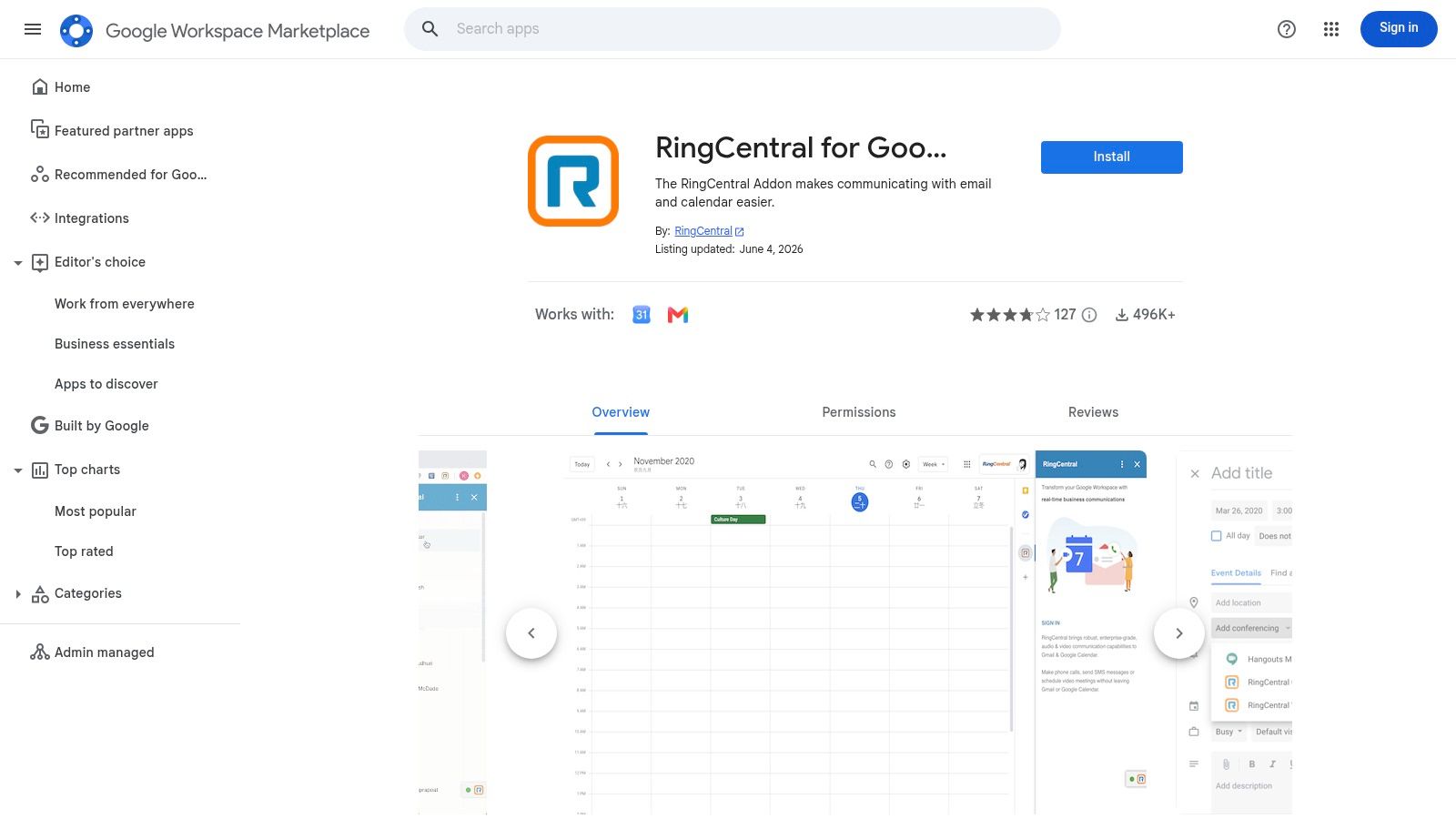
RingCentral usually shows up in companies that want one communications stack across calling, messaging, and meetings. If that's your setup, using Google Calendar without the RingCentral add-on creates needless friction.
This add-on lets users schedule RingCentral Video meetings from the Calendar sidebar and work inside Calendar and Gmail without hopping between systems. For IT teams, domain-wide deployment support matters because conferencing sprawl gets expensive fast, even when the cost isn't showing up as a line item called “sprawl.”
Good in Unified Communications Setups
I'd put RingCentral in the “clean fit or no fit” category. If you already use RingCentral video, this add-on is an easy yes. If you mostly live in Google Meet and only occasionally touch RingCentral, it creates overlap that users will feel immediately.
That overlap is the core issue. The problem isn't that the add-on fails. It's that employees now see multiple valid ways to create a video meeting, and consistency starts to slip.
Pick one default conferencing path for each team. Calendar add-ons should reduce choices at booking time, not multiply them.
RingCentral is practical for companies that want governance and standardization from the top down. It's less useful for smaller teams that are still figuring out which meeting platform they even want.
If RingCentral is already part of your stack, RingCentral for Google Workspace keeps Google Calendar from becoming the odd app out.
5. Dialpad Meetings for Google Calendar
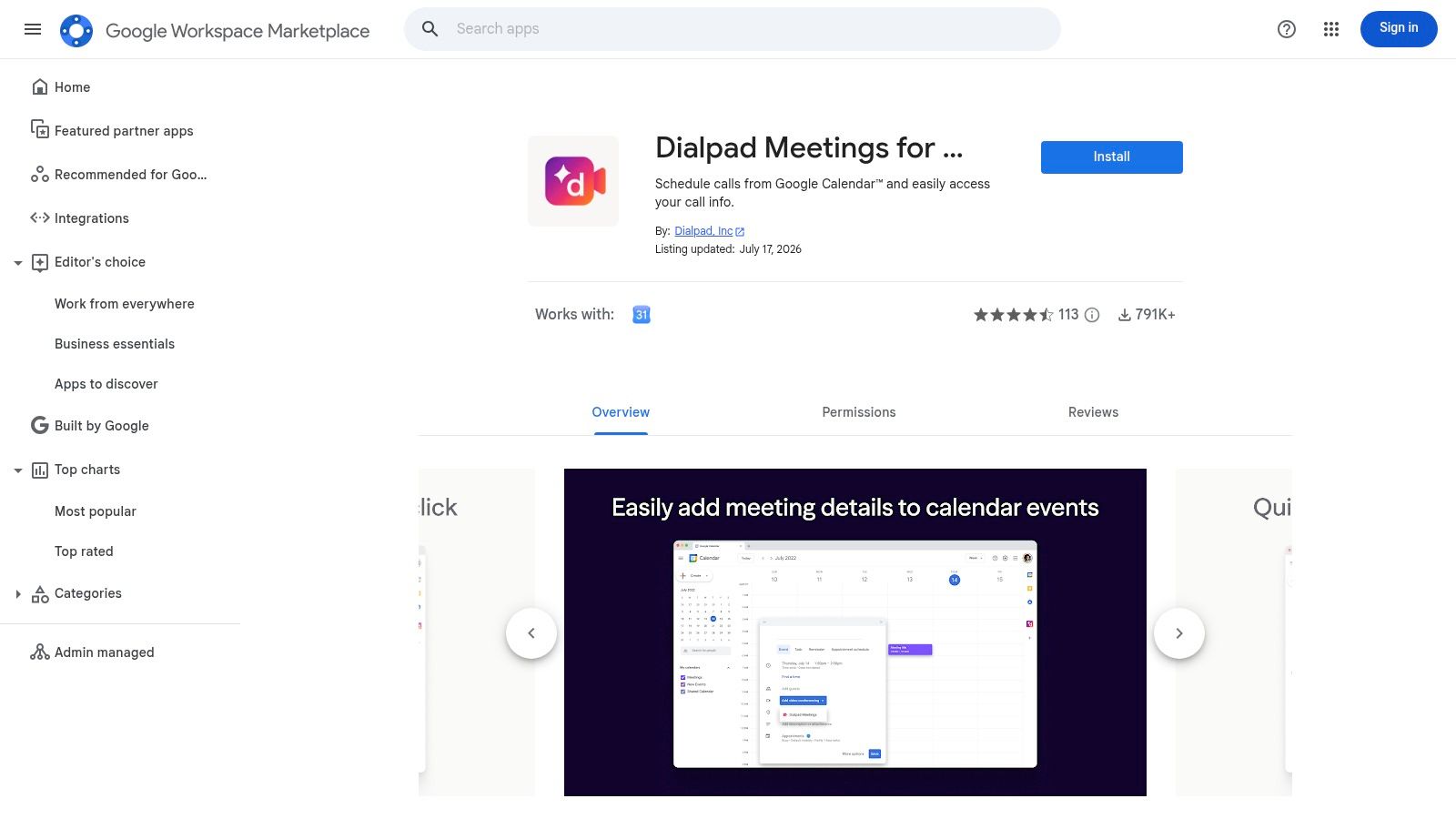
Dialpad's add-on is a quiet one. That's part of the appeal.
It doesn't try to reinvent scheduling. It gives Google Calendar users a direct way to add Dialpad meeting details to events, and that's enough for teams that already rely on Dialpad for conferencing. I especially like this kind of tool for executive assistant workflows, where booking on behalf of someone else has to be predictable.
A Better Fit for Delegated Scheduling
A lot of calendar tools are built around self-serve booking. Dialpad pays more attention to delegated work, which makes it useful in executive and admin-heavy environments. That's not flashy, but it solves a real problem.
There are still limits. You need a Dialpad Meetings account, and some capabilities depend on how your Dialpad plan is configured. Mobile support details also matter more than people expect when assistants and managers are making changes on the go.
What it does well: Reliable insertion of Dialpad links and details into Google Calendar events.
Where it stands out: Booking for someone else without turning the process into guesswork.
What to watch: Plan-dependent features can create uneven experiences across teams.
This is not the add-on I'd recommend first for broad experimentation. It's the one I'd choose when Dialpad is already official and meeting setup needs to stay boring in the best way.
You can find it in the marketplace at Dialpad Meetings for Google Calendar.
6. Calendly
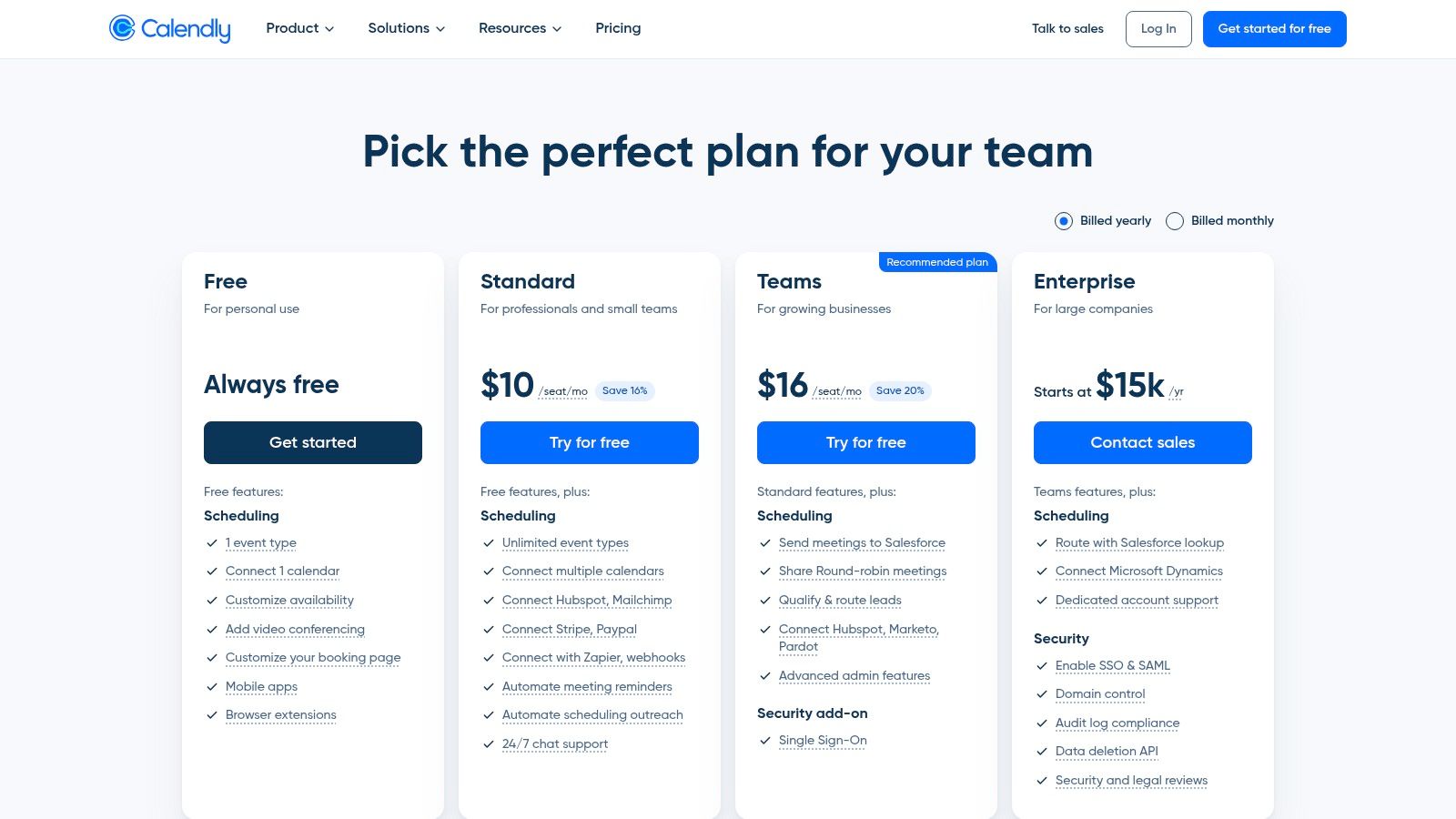
Calendly is what I recommend when the biggest calendar problem isn't meetings. It's the back-and-forth before meetings.
It connects to Google Calendar to prevent double booking and pushes confirmed events into the calendar automatically. That alone saves a lot of low-grade annoyance for recruiters, sales teams, customer success managers, and anyone whose day depends on people outside the company finding a time without sending six emails.
Great for Inbound Scheduling, Tricky at Scale
Calendly is easy to love when one person has one booking link. It gets harder when a team builds too many event types, routing rules, and special cases. The tool still works, but the admin discipline starts to matter more than the software itself.
One of the reasons scheduling tools remain essential is that they fill a gap native calendars don't handle well. In one expert roundup of leading Google Calendar extensions for 2026, Calendly was listed among 10 critical add-ons serving distinct scheduling and workflow needs.
That tracks with real life. Invitees don't need an account. Teams can scale into round-robin and routing on higher tiers. But if you let every department build its own logic with no standards, your booking setup turns into a maze.
Calendly works best when the company agrees on a few booking patterns and sticks to them.
For simple scheduling, it's excellent. For complex team routing, it's strong but only if someone owns the setup. You can review plan options at Calendly pricing.
7. Doodle
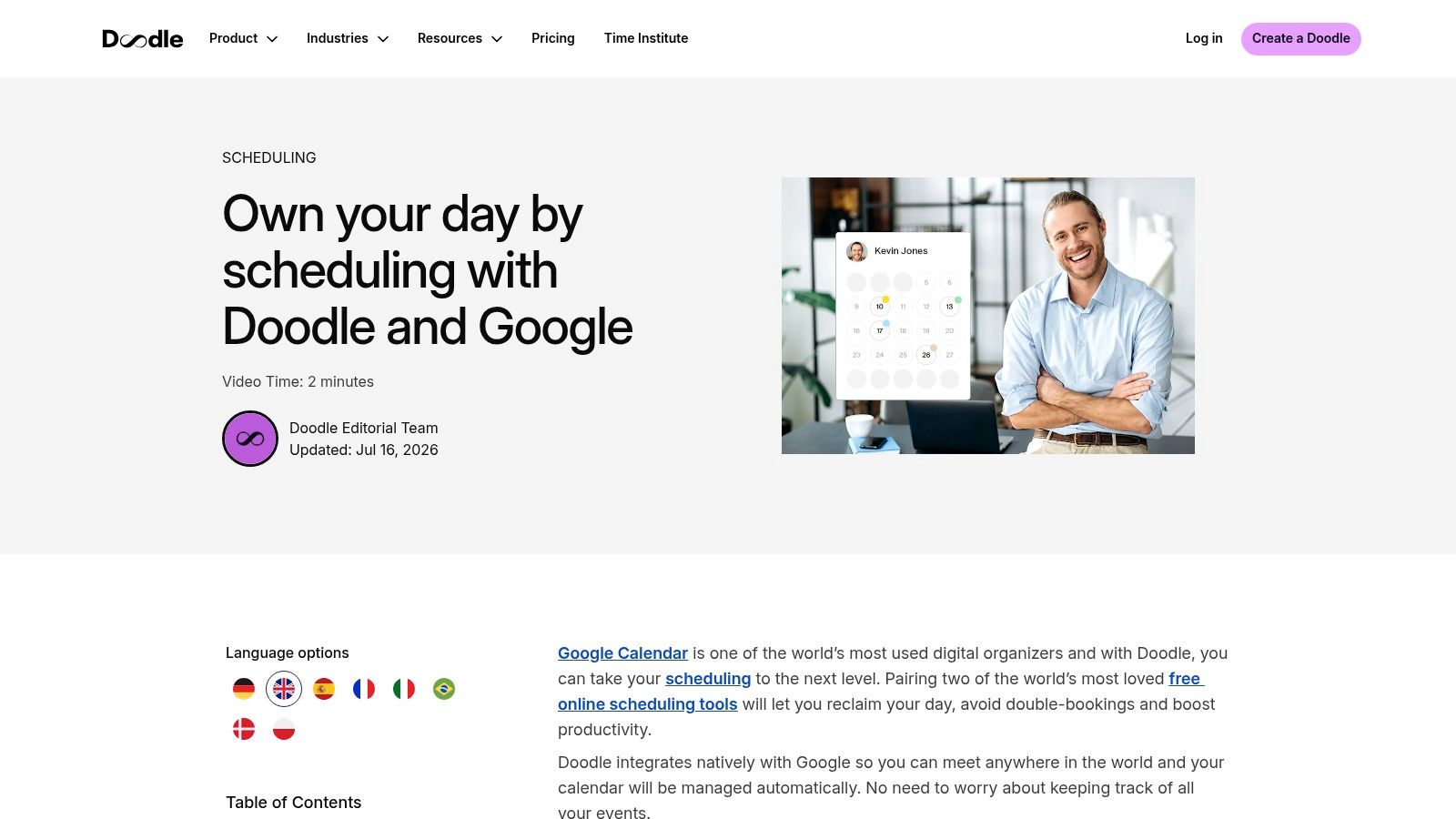
Doodle solves a different problem than Calendly. It's not for “book a slot on my schedule.” It's for “we need to find a time that works for a bunch of people who all have different constraints.”
That makes it a better fit for cross-company coordination, larger groups, and messy multi-time-zone meetings. You send possible times, people respond, and once the choice is confirmed, the event lands in Google Calendar. Clean enough.
Best When One Link Isn't Enough
Poll-based scheduling is slower than a direct booking page, but that's the point. Some meetings shouldn't be first-come, first-served. They need consensus.
Doodle also integrates with conferencing tools like Zoom, Google Meet, and Webex, which helps once the time is locked. But it doesn't offer the same sidebar feel as a native Google Calendar add-on. This is more of a connected scheduler than an in-Calendar control surface.
Use Doodle when: You're coordinating across organizations or trying to align a larger group.
Skip it when: You need a tight Google Calendar sidebar workflow for internal booking.
Expect this trade-off: Better polling and participant flexibility, less native Calendar feel.
For board meetings, partner calls, interview panels, and anything with too many opinions, Doodle's Google Calendar integration is still one of the most useful tools in the category.
8. Asana for Google Workspace
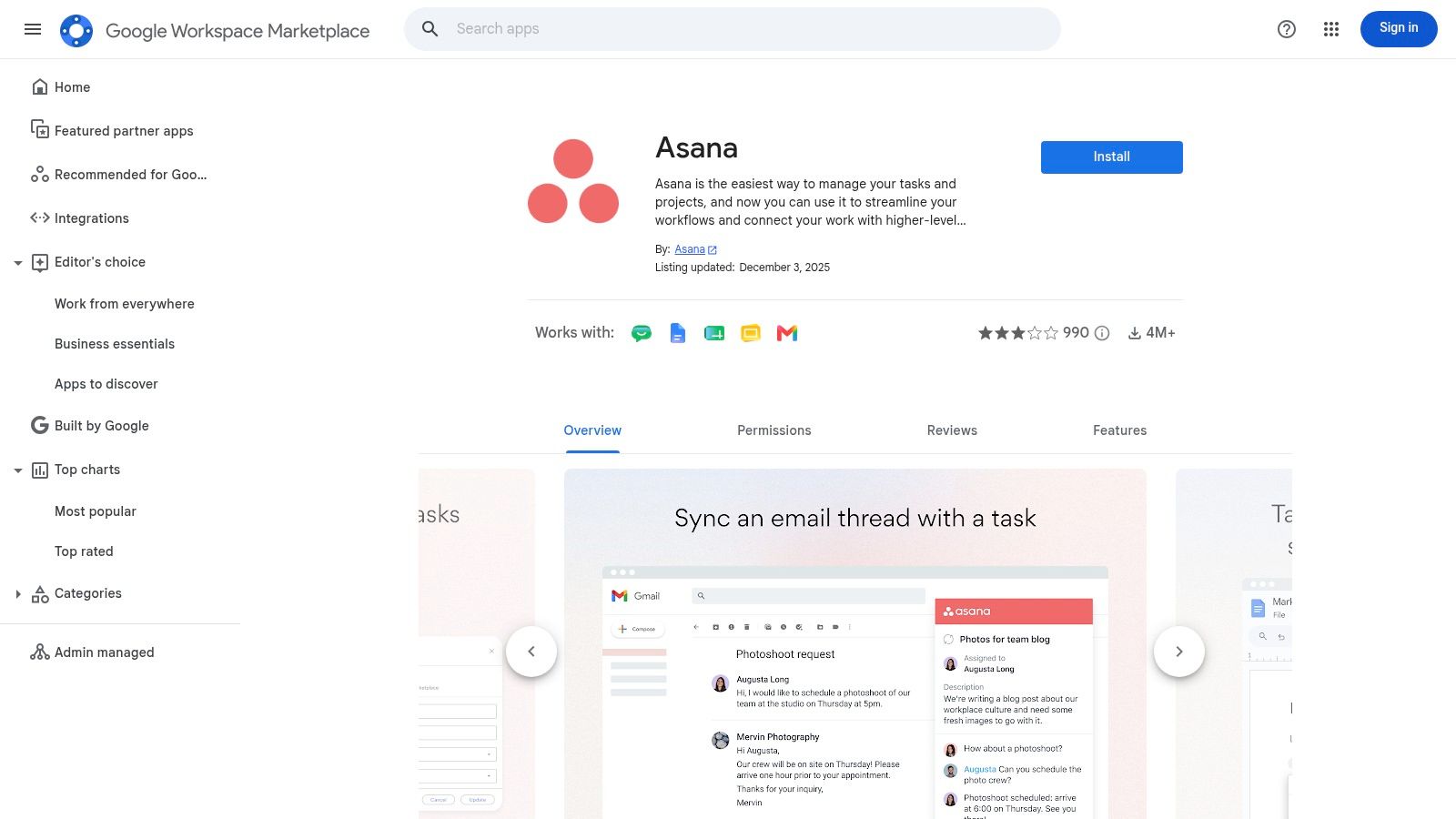
A meeting without task follow-through is just theater. That's why Asana belongs on this list.
Its Google Workspace add-on connects Calendar, Gmail, and Docs to Asana workflows, which means meetings can point somewhere concrete. You can pull task context into the event flow, connect schedule-related work to tasks, and keep follow-ups from floating around in notes nobody revisits.
Where Calendar Meets Real Work
I tend to recommend Asana for teams that already run projects in Asana and want meetings to stop existing as separate, disposable objects. That's the core value. It ties time to responsibility.
The trade-off is setup nuance. Two-way sync choices can get messy if the team hasn't decided what deserves to be a task, what deserves to be a calendar event, and what deserves both. If you're trying to clean up scattered ownership, Pebb's take on team task management software is a helpful complement.
Asana also shows up in broader expert lists of top Google Calendar extensions, which makes sense because native calendars still struggle to hold action and context together. For teams that want enterprise controls, admin deployment and SSO support make the add-on more realistic at scale.
You can install it from Asana for Google Workspace.
9. Reclaim.ai
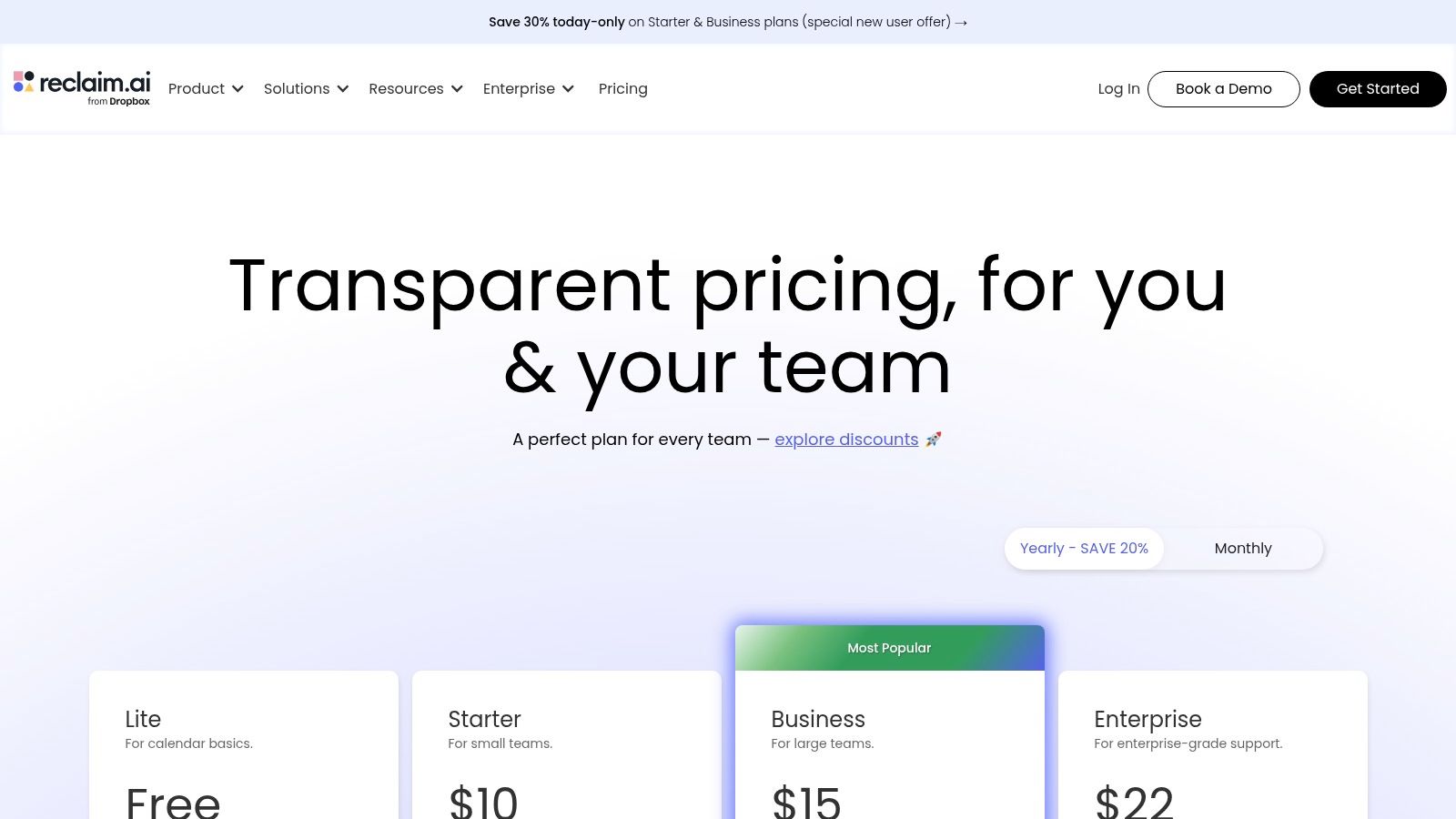
Reclaim.ai is for people whose calendars are technically full but strategically wrong.
It uses Google Calendar to auto-schedule tasks and habits, defend focus time, and resolve meeting conflicts based on rules you set. In practice, that means the tool is trying to protect your day from the very habits your team keeps slipping into.
Powerful, but You Have to Teach It
This is not a plug-it-in-and-forget-it add-on. Reclaim is policy-driven. The more seriously you take priorities, focus windows, and scheduling rules, the better it gets. If nobody wants to define those things, it can feel fussy.
That's why I like it most for teams already thinking about workload hygiene, PTO visibility, and capacity planning. It pairs naturally with work on time-off management apps, because schedule intelligence is only useful if the calendar reflects reality.
There's another angle leaders should know. Google's upgrade path for legacy add-ons can require users to re-authorize permissions, and Google's own upgrade documentation highlights that migration can disrupt workflows. The same source notes the potential for a 2-4 week delay during OAuth verification, which is exactly why operations teams should think about governance before they stack too many critical add-ons.
If a scheduling tool becomes operationally important, treat it like infrastructure. Test rollout, permissions, and reauthorization before people depend on it.
For users who want calendar automation with real policy control, Reclaim.ai pricing and plans are worth a look.
10. Clockwise

Clockwise is the one I'd pick when the calendar itself is the problem. Not scheduling links. Not meeting notes. The shape of the day.
It uses AI to move flexible meetings, resolve conflicts, and carve out Focus Time inside Google Calendar through its extension and Workspace add-on. One practical summary of the tool describes Clockwise as creating uninterrupted blocks of “Focus Time” while automatically rearranging flexible meetings through direct integration with Calendar, in Aon Meetings' writeup of Google Calendar add-ons.
Strong for Teams That Interrupt Each Other by Default
Clockwise works best in teams with lots of internal meetings and constant fragmentation. It helps individuals, but its real value shows up when a team shares scheduling preferences and protects concentration collectively.
I wouldn't call it effortless. You still need people to mark meetings correctly, accept some movement in the schedule, and trust the rules. But when that discipline exists, it can make a packed week feel less shattered.
One caution. Small and mid-sized teams often pile on too many single-purpose add-ons, and that stack creates friction of its own. A useful contrarian point from one builder's writeup is that Calendar add-ons have tight UI constraints, including strict icon requirements like 32x128 pixels, which hints at a bigger problem. Layer enough tools into Calendar and the experience starts to feel patched together.
For teams serious about protecting time, Clockwise on the Google Workspace Marketplace is one of the better bets.
Top 10 Google Calendar Add‑Ons: Feature Comparison
Add‑on | Core Features ✨ | UX / Quality ★ | Value / Price 💰 | Target Audience 👥 | Best For / Standout 🏆 |
|---|---|---|---|---|---|
Microsoft Teams Meeting (Google Calendar add‑on) | ✨ Add Teams links to events, one‑click join, admin/domain install | ★★★★ Official support, reliable | 💰 Requires Teams work/school account | 👥 Orgs standardizing on Teams + Google Calendar users | 🏆 Enterprise Teams needing domain rollout |
Zoom for Google Workspace | ✨ Create/insert Zoom from Calendar sidebar, join/manage from Calendar/Gmail | ★★★★ Familiar Zoom workflow, intuitive | 💰 Requires Zoom account; advanced features tied to plan | 👥 Zoom‑first orgs, remote teams | 🏆 Simple link insertion, side‑panel scheduling |
Cisco Webex for Google Workspace | ✨ Insert Webex meetings, Personal Rooms, Gmail/Calendar integration, admin controls | ★★★☆ Enterprise grade, hardware/device integration | 💰 Requires Webex accounts/licenses, admin setup | 👥 Orgs with Webex devices & OBTP rooms | 🏆 Tight Webex hardware & room join |
RingCentral for Google Workspace | ✨ Insert RingCentral Video links, schedule/manage in Calendar sidebar, admin install | ★★★ Streamlines RingCentral workflows | 💰 Requires RingCentral account; features plan‑dependent | 👥 UCaaS deployments standardizing on RingCentral | 🏆 Centralized RingCentral governance |
Dialpad Meetings for Google Calendar | ✨ Add Dialpad meeting links, EA/delegation booking, mobile support notes | ★★★ Simple, reliable insertion | 💰 Requires Dialpad Meetings account | 👥 Teams using Dialpad, executive assistants | 🏆 Delegation and EA booking workflows |
Calendly (Google Calendar integration) | ✨ Calendar sync to prevent double‑book, booking links, round‑robin/team routing | ★★★★ Widely adopted, easy for invitees | 💰 Free tier; paid tiers for routing, branding, SSO | 👥 Individuals to teams, customer‑facing schedulers | 🏆 Scalable scheduling without invitee accounts |
Doodle (Google Calendar integration) | ✨ Time polls that write confirmed events to Calendar, booking pages, conferencing integrations | ★★★☆ Excellent for multi‑timezone group polls | 💰 Free/basic; paid for branding/advanced features | 👥 Large groups, cross‑org scheduling | 🏆 Group/time‑poll scheduling for many participants |
Asana for Google Workspace | ✨ Workspace add‑on across Calendar/Gmail/Docs, task ↔ event sync options | ★★★★ Brings task context to meetings, enterprise controls | 💰 Paid tiers for advanced sync, SSO | 👥 Teams tying meetings to action items, PMs | 🏆 Meeting→task follow‑up & governance |
Reclaim.ai (Google Calendar add‑on) | ✨ AI time‑blocking, auto‑schedule tasks & habits, team scheduling policies | ★★★★ Powerful automation, needs tuning | 💰 Paid plans; best value with team rollout | 👥 Individuals & teams wanting automated focus time | 🏆 AI‑driven scheduling & focus defense |
Clockwise (Google Workspace add‑on & extension) | ✨ Smart meeting moves, protected Focus Time, team scheduling prefs | ★★★★ Reduces fragmentation, team coordination | 💰 Free & paid tiers; advanced features paid | 👥 Teams optimizing shared calendars & focus time | 🏆 Team‑level focus‑time optimization |
Planning Your Perfect Calendar Setup
Teams don't need more calendar tools. They need fewer surprises.
That's the lens I'd use for every choice above. If your main pain is video meetings, pick one conferencing add-on and make it the standard. If your pain is scheduling back-and-forth, start with Calendly or Doodle depending on whether you need direct booking or group polling. If your pain is fractured focus, Reclaim.ai and Clockwise are the two I'd test first.
The bigger pattern matters, too. Google Calendar has become an extensible platform, not just a date grid, and the marketplace model is the reason. Google's own documentation explains that users can discover these tools through the Get add-ons flow in Calendar settings or the side panel, which is why add-ons now sit much closer to daily work than old browser hacks ever did. That convenience is good. But it also makes it easy to over-install.
I've seen teams make the same mistake over and over. They solve one annoyance at a time until Calendar becomes a landing zone for five disconnected tools. One app for scheduling, one for meetings, one for notes, one for tasks, one for time blocking. On paper it looks flexible. In practice it's tiring. People stop trusting the setup because every action has two or three possible paths.
That's where Pebb fits the picture better than another isolated plug-in. Calendar add-ons are useful, but they should feed a broader operating system for work. If you're running shifts, updates, tasks, internal comms, files, clock-in, and PTO across frontline and office teams, the calendar shouldn't carry that burden alone. It should connect into one place where the team already communicates and operates.
If you're refining appointment flow across teams, this guide on mastering Google Calendar appointments for teams is also worth your time.
So build lightly. Pick the add-ons that remove repeat friction. Skip the ones that duplicate work. And remember that the best calendar setup doesn't feel powerful. It feels calm. You stop thinking about the tool because the day finally holds together.
If you want that calm without stitching together a pile of separate apps, Pebb is worth a serious look. It gives frontline and office teams one place for chat, calls, tasks, files, updates, events, shift scheduling, clock-in, and PTO tracking, so Google Calendar can stay what it should be: part of the system, not the whole system.
