
Master Your PTO: Paid Time Off Tracker Excel Guide 2026
Build a reliable paid time off tracker excel for 2026. This guide covers setup, accrual formulas, and reporting with real-world examples and guidance.
Dan Robin
A paid time off request looks harmless when there are three people on the team. Someone pings a manager, someone else adds a note to a shared calendar, and everybody moves on. Then the team grows. The requests come in by email, chat, hallway conversation, and whatever somebody scribbled in a notebook after a standup.
That's when time off stops being a small admin task and starts becoming an operations problem.
I've seen this happen more than once. The issue usually isn't policy. It's memory. Nobody can reliably remember who asked first, who still has days left, which office is closed for a local holiday, or whether that sick day was already counted. A paid time off tracker in Excel is often the first sane response. Not because it's elegant. Because it's available, flexible, and fast.
The Familiar Pain of Tracking Time Off
The mess usually starts with good intentions.
A manager wants to be accommodating. An employee wants a quick answer. HR wants clean records. But without one place to hold the truth, every request creates a little gap between what people think is happening and what is approved. Those gaps pile up. Before long, two people on the same team are off at once, someone's balance is wrong, and payroll is asking questions nobody wants to answer.
That's why spreadsheets have stuck around for so long. Template-based PTO tracking in Excel remains common because teams can set it up quickly with standard spreadsheet features, and modern templates often include region-specific public holidays and company holidays that make the workbook act like a lightweight workforce planning tool, as noted in this holiday tracker guide from CharlieHR.
Chaos usually looks ordinary
What makes this hard is that it doesn't look dramatic at first. It looks like normal work.
A quick message: “Can I take Friday off?”
A calendar invite: Added before approval, then forgotten.
A verbal yes: Never written down anywhere permanent.
A balance question: Answered from memory, which is where mistakes begin.
None of this feels dangerous in the moment. Together, it creates a system nobody fully trusts.
A tracker earns its keep when it settles arguments before they start.
That's the standard I use. Not beauty. Not complexity. Trust.
If you're already sorting through inconsistent requests, it helps to tighten the intake process before you touch formulas. A simple request workflow matters just as much as the workbook itself. This guide on employee time off requests is a useful companion because it deals with the front door of the problem, not just the spreadsheet behind it.
Excel is a respectable first step
I don't think Excel is the forever answer for many organizations. I do think it's a respectable answer for right now.
A good spreadsheet brings fairness into the room. It gives managers one place to check balances, one place to see upcoming absences, and one record to review when there's confusion. That's not small. For a growing team, it's often the difference between “we think this is fine” and “we know what's approved.”
Laying the Foundation Your Master Sheet
Many individuals start with the calendar. I don't.
The calendar is the storefront. The Master sheet is the warehouse. If the warehouse is sloppy, the storefront lies.
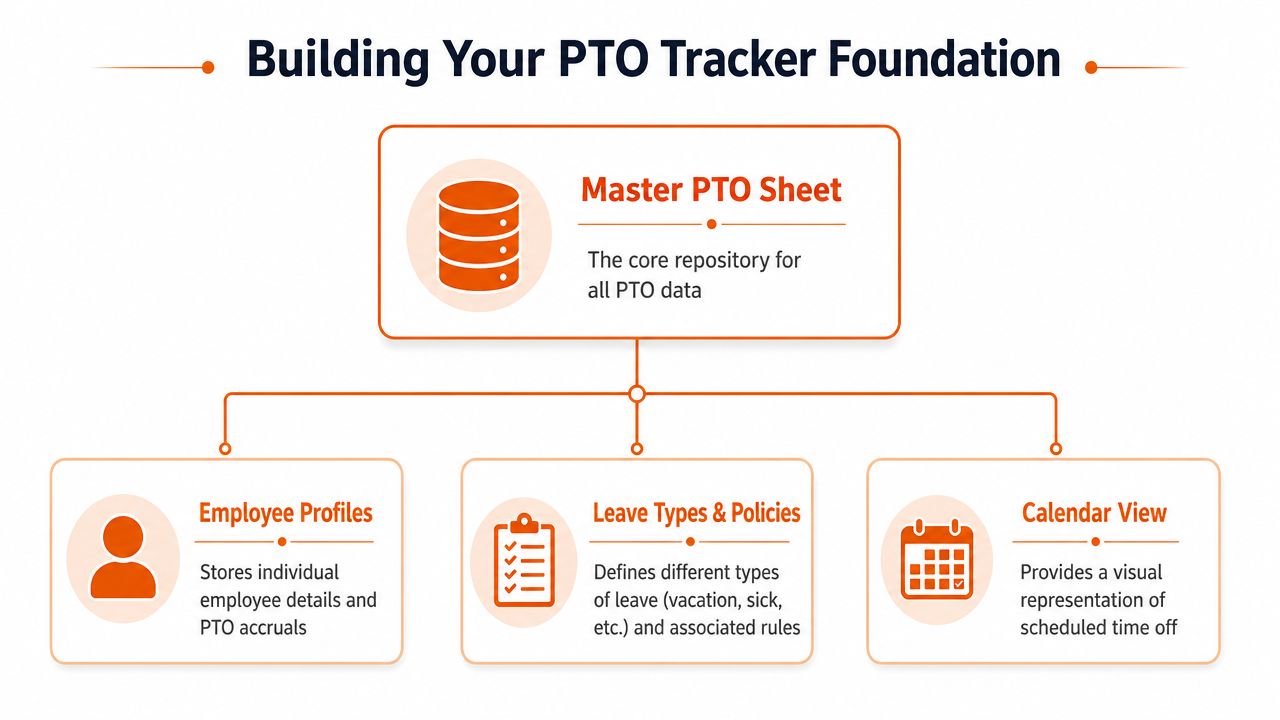
A robust PTO tracker in Excel starts with structured data like employee name, role, hire date, and annual allotment. It also helps to include fields such as department and reporting manager so the workbook supports policy enforcement and auditability, not just visual tracking, as described in this PTO template guide from BuddiesHR.
What belongs on the Master sheet
I keep the Master sheet plain and boring on purpose. No bright fills. No merged cells. No decoration that gets in the way of filtering or formulas.
Here's the core structure I trust:
Field | Why it matters |
|---|---|
Employee name | The visible identifier most people will search for |
Role | Helps explain policy differences when they exist |
Hire date | Needed for prorated allotments and policy timing |
Annual allotment | The baseline for balance calculations |
Department | Useful for reporting and approval patterns |
Reporting manager | Helps route decisions and resolve conflicts |
PTO type eligibility | Clarifies which leave categories apply |
Notes | A place for exceptions you don't want hidden in formulas |
If your team has duplicate names, add an internal employee ID even if nobody else sees it. It saves headaches later when reports get larger and lookups get more fragile.
Separate static facts from moving requests
This matters more than people think. Employee details change slowly. Time off requests change all the time. Don't put them in the same messy sheet and hope for the best.
I prefer three sheets with clear jobs:
Master sheet: Static employee and policy data
Requests sheet: Every submitted and approved leave entry
Calendar sheet: A readable view for managers and teams
This separation makes errors easier to spot. When a balance looks wrong, you can trace whether the issue came from the employee record, the request log, or the display layer.
Practical rule: If someone can type over a formula while entering a request, the workbook isn't finished.
That's where sheet protection earns its place. Let people enter what they need to enter. Lock the cells that carry policy logic, balances, and approval controls.
Build for the policy you actually have
A lot of PTO spreadsheets fail because they're built around a fantasy policy. One annual bucket. One leave type. One location. Clean and simple. Real life is usually messier.
A durable workbook leaves room for variation. Vacation may sit beside sick leave. One office may observe different holidays than another. One group may need a manager approval field while another only needs a status note. If your company spans locations, separate worksheets by location and keep a summary sheet above them. That keeps local rules visible without turning one tab into a junk drawer.
The Master sheet won't be the part people admire. It's still the part that makes the rest of the tracker believable.
Making It Work The Formulas That Matter
A PTO spreadsheet becomes useful when it stops asking you to do the math by hand.
That's the line. Before formulas, Excel is storage. After formulas, it becomes a working tool.
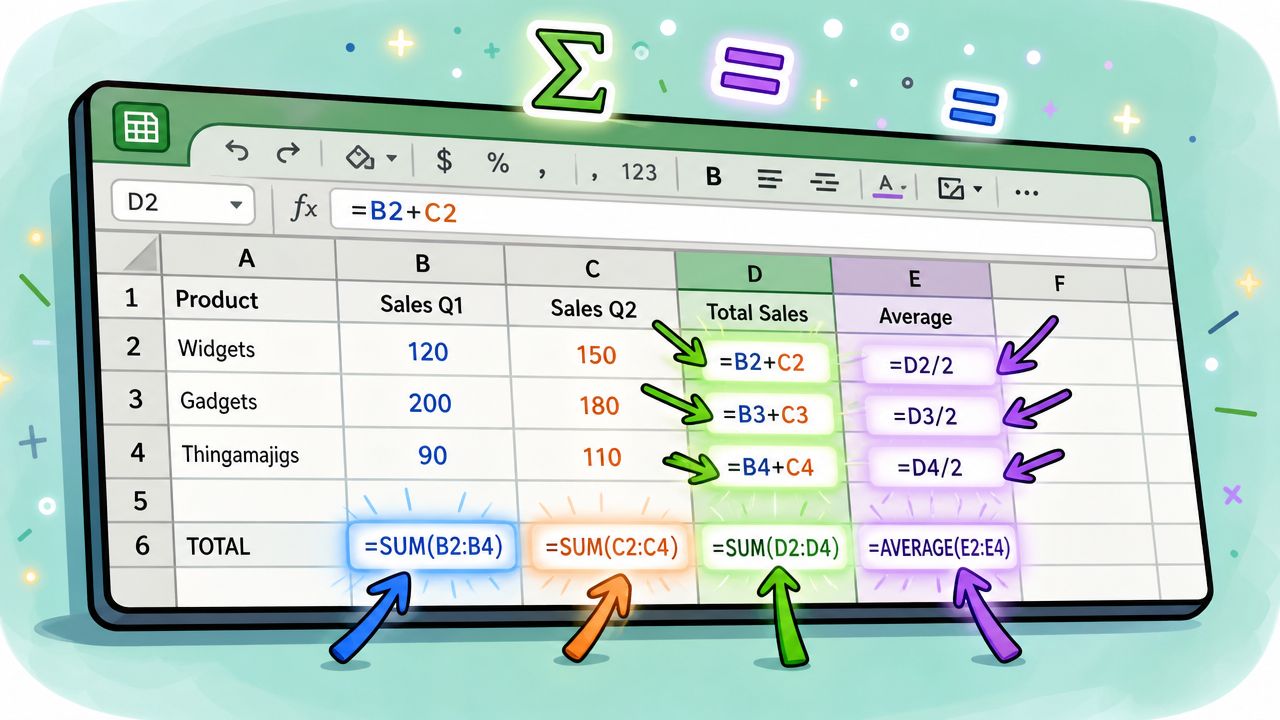
The strongest Excel leave trackers use a calendar grid plus formula-driven counters like COUNTIF to total leave codes. That structure works especially well for multiple PTO types, and repeating the formulas across months helps avoid the manual tallying errors that make spreadsheets drift out of sync, according to this leave tracker walkthrough from Vacation Tracker.
Start with the calendar codes
I like a simple code system on the calendar sheet. One code for vacation, one for sick leave, one for personal time, and so on. Keep it short. Keep it consistent.
For example, each employee gets a row. Each date gets a column. The cell contains a leave code only when the person is out. Then COUNTIF does the counting.
That's cleaner than free-text notes like “vacation,” “vac,” “annual leave,” and “out.” Free text looks flexible until the day you need totals.
Let formulas count, not people
The workhorse formula here is COUNTIF. It counts how many times a specific leave code appears across a range. If vacation is marked with a single code, Excel can total those days without anyone touching a calculator.
It functions like a turnstile. Every approved day of leave passes through one gate, and the formula counts every pass. If your workbook uses the same code structure month after month, you can carry the logic across the whole year with much less risk.
A practical setup usually includes:
Used vacation total: Count of vacation code cells across the employee's row
Used sick leave total: Same pattern, different code
Remaining balance: Annual allotment minus approved days used
Month totals: Repeated formula blocks that roll into annual totals
The trick isn't cleverness. It's repetition. Good spreadsheets are repetitive in the right places.
Handle accruals with plain logic
Not every team grants PTO the same way. Some organizations use a yearly allotment. Others prorate based on hire date. Some tie accrual to hours or pay periods. Your formula should mirror the policy, not simplify it into something inaccurate.
If someone starts midyear, prorated logic matters because it cuts down on manual recalculation when onboarding happens after the year begins. I'd rather let one tested formula handle that than trust a manager to remember the adjustment each time. If your policy is accrual-based and you need a deeper framework before you build the workbook, this guide on how to calculate PTO accrual is worth reading first.
If a balance depends on memory, it isn't a balance. It's a guess.
That's why I avoid hidden side calculations in random tabs. Put the key logic where another operator can audit it without going on a treasure hunt.
Protect the engine
Once the formulas work, lock them down.
A lot of spreadsheet pain comes from accidental edits, not bad intent. Someone pastes over a formula. Someone drags a cell one row too far. Someone updates one month and forgets the others. Then the tracker starts to mislead.
My basic checklist is simple:
Protect formula cells so request entry doesn't break calculations.
Keep input cells obvious with a different fill color.
Use validation lists for leave codes and approval status.
Test edge cases like midyear hires, canceled requests, and overlapping holidays.
You don't need a fancy workbook. You need one that survives contact with normal human use.
Adding Clarity With Formatting and Calendars
A PTO sheet usually breaks in a very ordinary moment. A manager opens it five minutes before approving leave, reads across the wrong row, misses a holiday highlight, and approves a request that leaves the team short. The formulas can be right and the workbook can still fail the job.
Use formatting to reduce mistakes
Formatting is part of the control system.
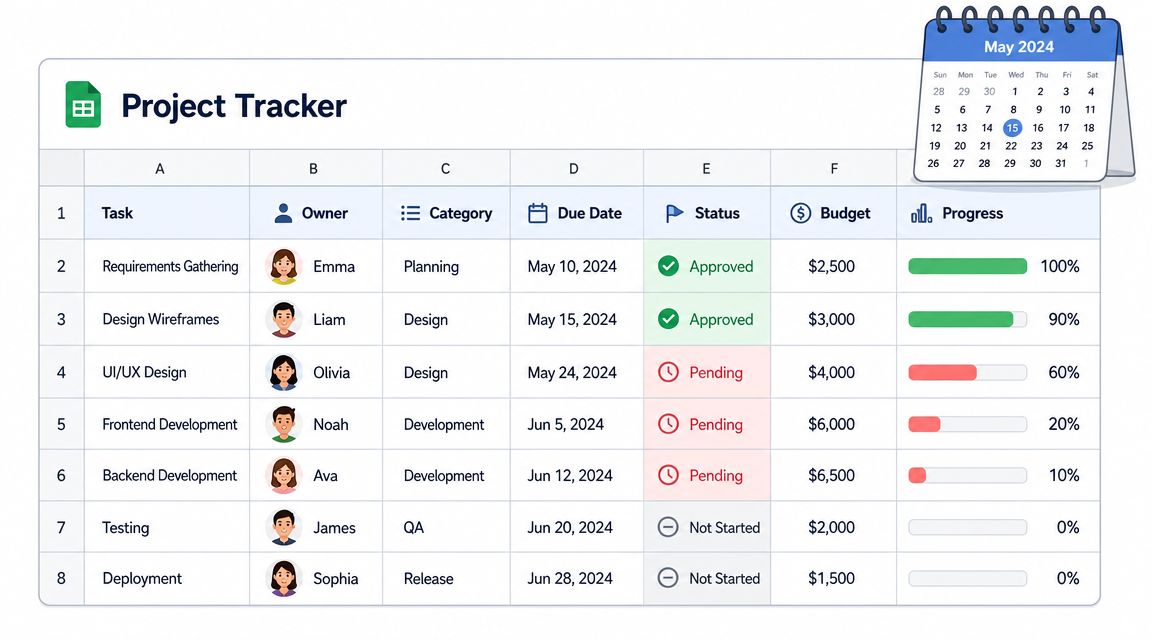
I use conditional formatting for exceptions, not decoration. Low balances should stand out. So should unusually high balances if your policy has carryover limits or payout implications. The exact thresholds depend on your policy, but the point is simple: if someone has to inspect each cell manually, the sheet is doing too little.
Weekend shading and holiday shading matter for the same reason. They stop people from counting nonworking days as leave, especially in teams that approve requests directly from a calendar view. If your policy converts time across shifts or partial days, a vacation hours calculator can help you sanity-check the numbers before you turn them into color rules.
I also keep the color logic boring on purpose. One color for inputs. One for approved leave. One for holidays. One for warnings. Too many colors create hesitation, and hesitation usually means someone asks HR to interpret the sheet for them.
Build a calendar people can read in seconds
The calendar tab is the operating view. The request log is the record. Mixing those two jobs on one sheet usually creates clutter.
A usable calendar has a few traits that sound minor until the file gets large. Freeze the employee columns on the left. Keep date columns narrow. Show dates in a simple day format if the month and year are already obvious. Mark weekends and company holidays consistently across the full range. Those choices reduce scanning errors, which is what matters when a manager is checking coverage quickly.
Freezing panes is the one I would not skip. I have seen perfectly decent trackers lose trust because someone scrolled sideways, matched the leave block to the wrong employee, and planned staffing around a mistake. Once that happens, people stop trusting the workbook and start keeping side notes. That is the beginning of spreadsheet drift.
The calendar should answer one operational question fast: who is out, and when?
That standard helps cut a lot of nonsense. If a visual element does not help someone approve leave, spot a conflict, or confirm coverage, remove it.
Keep the visual layer separate from the log
I do not recommend typing leave directly into the display calendar. It feels convenient at first, then someone overwrites a formula or edits a cell that was supposed to be derived from approved requests.
A better setup keeps the request sheet as the source of truth and lets the calendar pull from it with lookups or date-based formulas. That separation makes audits easier, reduces duplicate entry, and gives you one place to fix an error. It also exposes one of Excel's real limits. Once multiple managers need live visibility and clean approvals at the same time, maintaining that separation gets harder than it should.
That is why I treat an Excel tracker as a respectable first step. It can be clear, useful, and reliable for a small team. Past that point, the effort required to preserve clarity starts competing with the work itself.
Turning Data into Insights With Reporting
Most PTO spreadsheets stop at balance tracking. That's useful, but it's only half the value.
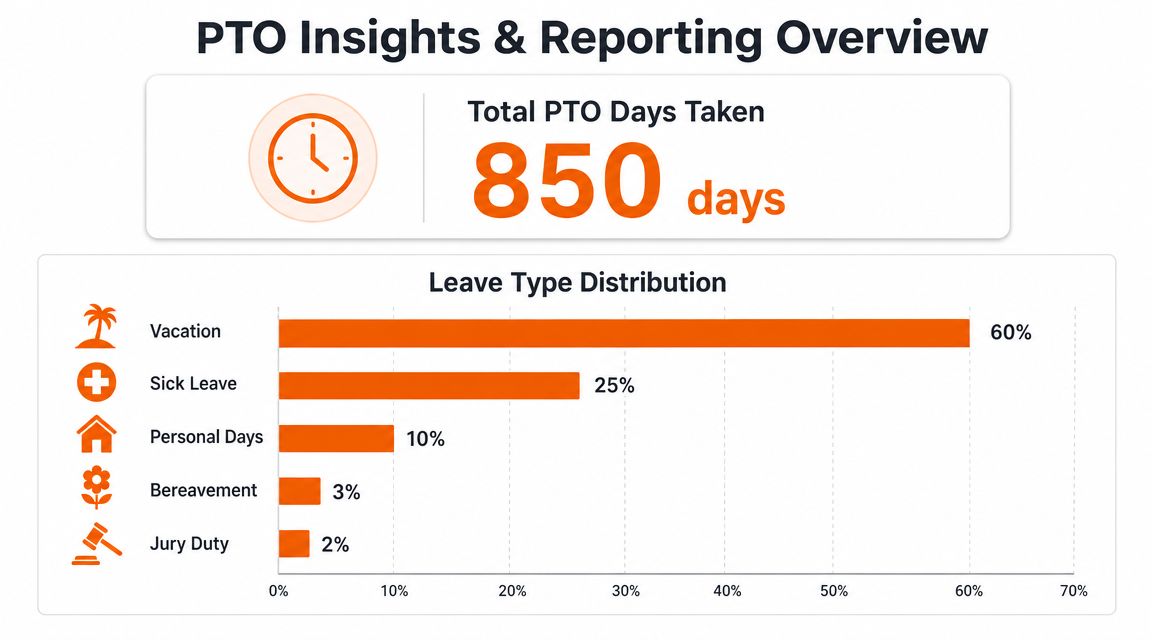
Once your data is clean, the workbook can start answering better questions. Not just “Does Maria have time left?” but “Which teams tend to stack leave in the same periods?” and “Where do we keep getting surprised?”
What reports are actually worth building
I'm not a fan of dashboards made for applause. If a report doesn't change a decision, it's decoration.
The reports I keep coming back to are simple:
Department view: Which teams have the most overlapping leave patterns
Leave type view: Whether certain categories are rising or sitting unused
Manager view: Where approval load or bottlenecks tend to happen
Month view: Which periods get crowded and need earlier planning
PivotTables are good for this because they let you group the same request data in different ways without rewriting the workbook each time. A raw balance sheet can tell you one person's status. A pivot can show you a staffing pattern.
Use the tracker for planning, not just recordkeeping
The spreadsheet now begins more mature work.
If a team regularly clusters vacation in the same season, that's not just an HR note. It's a staffing signal. If one department leaves lots of time unused until late in the year, that's not just trivia. It creates operational risk when everyone rushes to use leave at once. The workbook won't solve that by itself, but it will show you the pattern early enough to have a better conversation.
I also like to compare approved time off against scheduling pressure. If you're managing shifts or capacity-heavy teams, a leave report becomes more valuable when it sits beside workload planning. In those cases, a separate calculator can help managers sanity-check requests and balances. This vacation hours calculator is useful when your team thinks in hours instead of just days.
Keep reports close to the source
A common mistake is exporting data into a second reporting workbook every month. That creates a reporting ritual instead of a reporting system.
I'd rather build the report tabs inside the same workbook, connected directly to the structured request log and the Master sheet. Fewer handoffs. Fewer chances for mismatched data. Less “which version is correct?” energy.
A spreadsheet won't become a full analytics platform. It doesn't need to. If it helps you spot leave patterns before they turn into staffing headaches, it's already doing better than most.
When You've Outgrown Your Excel Tracker
A PTO workbook usually breaks in a very ordinary moment. A manager approves leave from an old file. Someone sorts one tab without expanding the table. An accrual formula gets copied down one row too far. Three weeks later, HR is tracing balances cell by cell to find out why an employee lost a day.
That is usually the practical limit of Excel. Not capacity on paper. Maintenance under pressure.
A spreadsheet is a respectable first step because it forces clear thinking. You define accrual rules, leave types, carryover limits, approval steps, and who owns updates. That discipline matters. But the same flexibility that makes Excel useful early on also makes it fragile once more people touch it, more exceptions show up, and leave data starts affecting payroll, scheduling, and manager decisions.
The breaking point is usually process, not formulas
I have seen teams keep a tracker alive longer than they should because the math still looked right. The problem was never just the math. It was the chain of handoffs around it.
Once accuracy depends on one careful person remembering every adjustment, the tracker has evolved into an operational risk. Requests come in by email, chat, and hallway conversation. Managers approve in different ways. Someone updates balances later. If that person is out or busy, the workbook falls behind and everyone starts working from partial information.
That is the point where the sheet stops being a tool and starts being a chore.
The pattern shows up in other admin-heavy businesses too. A tutor can manage attendance and scheduling in tabs for a while, then eventually needs tools that replace spreadsheets for tutors because the manual upkeep becomes the job.
A dedicated system solves different problems
The move away from Excel is not an admission that the spreadsheet was wrong. It means the business now needs things spreadsheets do poorly: permission controls, request workflows, approval history, shared visibility, and one place employees can trust without asking which version is current.
That distinction matters. Excel is good at structure. It is much less reliable as a multi-user process.
If employees need to request time off without touching the source file, or managers need leave data to sit beside schedules and team communication, a dedicated tool starts to make practical sense. Pebb handles PTO tracking alongside chat, scheduling, tasks, and company updates, which is useful when time-off decisions need to live inside daily operations instead of in a separate workbook.
The spreadsheet still did important work. It helped you formalize policy, expose edge cases, and learn where your approval process breaks. That is a good return on a low-cost system. But once the admin load grows faster than the team's confidence in the file, keeping Excel as a permanent solution usually costs more than replacing it.
