
How to Sync Across Devices in Pebb Without Losing Your Mind
Learn how to sync across devices in Pebb with clear steps for setup, conflict fixes, offline use, and best practices on mobile and web.
Dan Robin

A shift lead's tablet dies halfway through inventory. The phone in his pocket still works, so he keeps tagging pallets there. Later, he opens a laptop at home to finish the handover before payroll closes. The work didn't stop. The context did.
That's the core problem with syncing across devices. A toggle can be switched on while messages, permissions, files, and read states still fail at the moment someone changes screens. In hospitals, warehouses, and delivery teams, the question isn't whether an app says “synced.” It's whether the next person receives the right information without asking which device has the latest version.
Why Cross-Device Sync Is the Real Frontline Problem
Marcus, a shift lead at a cold-storage warehouse, starts his inventory count on a shared tablet. The screen is awkward in gloves, but it's familiar and mounted near the loading bay. Halfway through the count, the battery gives out. He picks up his personal phone and continues tagging pallets while coordinating a delivery.
On the phone, a colleague sends a message about a damaged case. Marcus reads it, replies, and adds the detail to the handover thread. Hours later, he opens a laptop at home to enter the final numbers before payroll locks. Each handoff creates a small opening for failure. A message can be missed, a count can be duplicated, or a note can remain trapped on the device that created it.
Sync is the quiet plumbing behind the shift. Nobody praises it when it works. Everyone notices when it doesn't.
People stopped working from one screen
Multi-device behavior was already common before hybrid work made it more visible. The U.S. National Telecommunications and Information Administration reported that 52% of Americans used two or more internet-connected devices in 2013, up from 41% in 2011, while nearly one-third used three or more device types in 2013, up from 19% in 2011. The historical data is summarized in this research analysis on multi-device behavior.
A separate Pew Research Center analysis found that 66% of Americans owned at least two digital devices, while 36% owned a smartphone, computer, and tablet. The point isn't the age of those figures. It's the pattern they established. People move between screens, and work has to move with them.
Research also found that about 60.4% of smartphone use occurred in multi-device settings, with computers involved in roughly three-quarters of that use, according to research on multi-device interaction. A Google study cited in the same discussion found that 90% of participants used multiple devices sequentially and 81% used them simultaneously.
The workflow matters more than the setting
For a frontline employee, continuity means more than seeing the same account on every device. The message needs to retain its author, timestamp, attachments, and read state. A task started during rounds should remain understandable when a supervisor opens it on a desktop. A handover written in a refrigerated aisle should still be available when the next shift signs in.
That's why I treat sync as a workflow problem. The work has to survive four tests:
Setup: Every device uses the correct account, workspace, and permissions.
Validation: The team can prove that changes are arriving without guessing.
Recovery: Offline work, conflicts, and stale sessions have a clear path back to normal.
Maintenance: Someone checks the system after devices, operating systems, and staff access change.
If those pieces are missing, “sync enabled” is just a reassuring label.
Setting Up Your Pebb Account on Every Device
Start with one account and one workspace. Don't create separate logins for the shared warehouse tablet, the employee's phone, and the clinic laptop. That creates three identities where the team needs one thread.
Sign in once, then match every endpoint
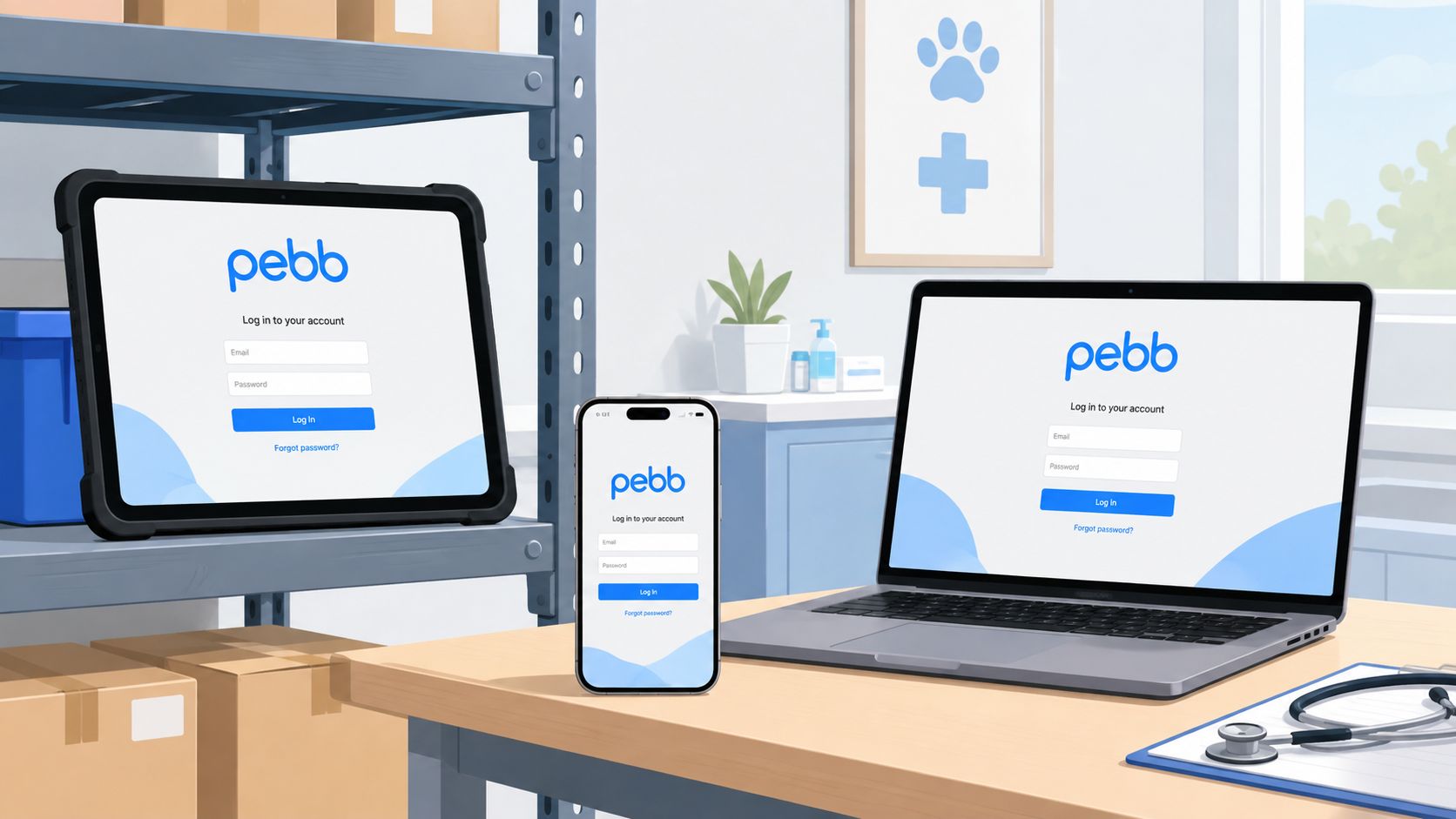
Create the work account first. Sign in on the shared tablet, the personal phone, and the web browser using the same work email. On each device, open the workspace and check the organization name, team area, and visible channels. A successful login isn't enough if the user has landed in a personal workspace or a different organization after a transfer.
For larger teams, single sign-on can reduce account drift by giving employees one controlled route into the correct organization. Pebb's overview of single sign-on integration is useful when the identity provider, rather than the employee, should manage access.
On mobile, allow push notifications. On tablets, allow background refresh and background data. In the desktop browser, keep the live connection available so new messages can arrive without relying on a manual reload.
Check the settings that quietly block work
Two mismatches cause more trouble than people expect. On Android, an employee may sign in with a personal Google account on one device and a work account on another. The app can appear installed and functional while the surrounding device policies treat the sessions differently.
Managed tablets create another problem. Mobile device management can restrict background data, battery activity, or notification delivery. If your organization uses Microsoft Intune, review the policy implications alongside the broader Intune device management costs before assuming the app is allowed to run normally in the background.
Then run a small test before entering real shift data:
Send a message from the phone.
Open the same conversation in the web browser.
Refresh once if needed.
Confirm the message, author, and timestamp match within ten seconds.
That test takes less than a minute. It's a much better handoff to production than trusting a green icon.
What a Healthy Sync Actually Looks Like
A healthy sync is observable. You can see the same work arrive on another device, with the context intact, without performing a ritual of sign-outs and repeated reloads.
Start with a message on the warehouse tablet. Open the same conversation on the desk laptop. The message should appear while the task is still active, not after someone closes and reopens the entire app. The timestamp should align, and the author should remain the original sender.
Test the handoff, not just the connection
Next, take a photo on the phone during a delivery and send it to the shared channel. On the clinic laptop, check that the media preview renders normally. A file that technically arrived but requires a manual download, a second login, or a different conversation is only partially useful.
Then reply from the phone while walking between rooms or loading areas. Open the thread on the laptop and verify that the reply sits in the original conversation. It shouldn't look like a forwarded copy with the author identity flattened or the surrounding messages missing.
Practical rule: Test the exact movement your employees make during a shift. A desktop-to-desktop check won't reveal a mobile permission problem.
The distinction between fast delivery and genuine continuity matters. Real-time sync explained for workplace teams is less about speed as a vanity metric and more about preserving the state of the work as people move.
Use the three-device operator test
The most useful test is simple:
Read a message on device A.
Reply on device B.
Finish the task on device C.
At the end, check the thread, attached files, author labels, and read state. If the next device shows the reply but not the attachment, or the message but not the read state, the workflow still has a gap.
A good system lets the worker stop thinking about where the truth lives. The phone, tablet, and laptop are views into the same work, not competing records.
Why Sync Quietly Breaks and How to Tell
Most sync failures aren't caused by weak Wi-Fi. They're caused by two devices disagreeing about identity, permissions, or what data they're allowed to exchange.
The fastest triage starts with the same conversation on two devices. Send a short message from device A, wait ten seconds, and check device B. If nothing appears, don't restart the router first. Check the account email, organization, workspace, and notification permissions.
Follow the visible clues
An account mismatch usually leaves a clear sign. The user sees an empty channel, a different profile, or a workspace with fewer conversations. A region or workspace mismatch after a transfer can look similar, especially when the employee has recently changed teams.
Permissions fail differently. A phone may show old messages but fail to deliver new notifications after an operating system update. A tablet may work while open but stop receiving changes when the screen locks because background activity has been restricted. Battery optimizers often create this exact pattern.
Stale authentication tokens can produce a third version of the problem. The user appears signed in, but new content stops arriving. A forced sign-out and sign-in can refresh the session, though an administrator may need to restore access if a permission was revoked.
What you observe | What to check first |
|---|---|
The conversation is missing | Account and workspace identity |
Old content appears, new content doesn't | Permissions, background refresh, and session state |
Messages arrive only after opening the app | Battery restrictions and background activity |
One device shows a different team area | Organization or workspace assignment |
Don't confuse a local problem with a network problem
A working browser on the same network doesn't prove the mobile app has permission to sync. Likewise, a phone with a strong signal may still be using the wrong account.
Google support discussions identify common causes such as different signed-in accounts, disabled sync categories, stale session tokens, disabled background refresh, and server-side resets in troubleshooting sync configuration problems. The useful lesson is diagnostic, not product-specific: check the data type and device state before applying a universal fix.
Offline Behavior and Conflict Resolution in Pebb
Frontline work doesn't wait for perfect coverage. Hospital basements, refrigerated aisles, loading docks, and delivery vans all create moments when a device loses its connection.
When the network drops, Pebb should keep the employee's messages, task updates, and file edits locally. Once the connection returns, the device replays those changes in order. The worker can keep moving instead of standing still and watching a spinner.

Understand what happens when two people work at once
Suppose a shift lead drafts a handover note on a tablet inside a cold-storage area. A colleague replies from a desktop connected to Wi-Fi. The tablet reconnects later, and both contributions need to remain visible.
For messages, the system can merge the thread by timestamp rather than replacing one contribution with the other. The result preserves the sequence of the conversation. The reply doesn't erase the note because it was created on a different device.
Shared documents require more judgment. If two people edit the same paragraph while offline, automatic merging can be fast but may not preserve the intended wording. That's where version history matters. Review the changes, keep the useful draft, and restore an earlier version if the combined result loses meaning.
A practical approach to version control best practices for teams treats history as a safety net, not an excuse to edit without coordination.
When certainty matters: Let messages merge automatically. Give a person the final say over shared document conflicts.
Make recovery part of the process
After reconnection, check the queue rather than assuming every change arrived. Look for duplicate messages, missing attachments, and document warnings. If a file remains unresolved, preserve both versions before deciding which one becomes the working copy.
The same principle applies to sync services generally. A primary cloud hub, an inventory of devices and accounts, sample-file testing across endpoints, status checks, version history, and local backups create layers of protection. Guidance on cross-platform sync privacy and reliability also highlights the need for deliberate conflict handling instead of blind trust in automation.
Best Practices That Keep Sync Reliable Over Time
Sync drifts. A phone gets replaced, an operating system update changes a permission, a contractor leaves, or a battery policy blocks background activity. The setup that worked on the first day can become unreliable without anyone changing the sync setting itself.
Give ownership to a person, not to the feature. For frontline teams, assign a sync steward on each shift. That person runs the handoff test before work begins and knows who to contact when a device stops receiving updates.
Keep a small maintenance rhythm
Once a month, review connected devices in the Pebb security panel. Revoke phones that are no longer in service. Remove tablets that were returned, reassigned, or left in a break room. An old session is both a security concern and a source of confusion when someone asks which device should still receive a message.
After every operating system update, confirm background app refresh, notification access, and battery exemptions. A weekly force-close and reopen can also expose a stale local session before it becomes a shift problem.
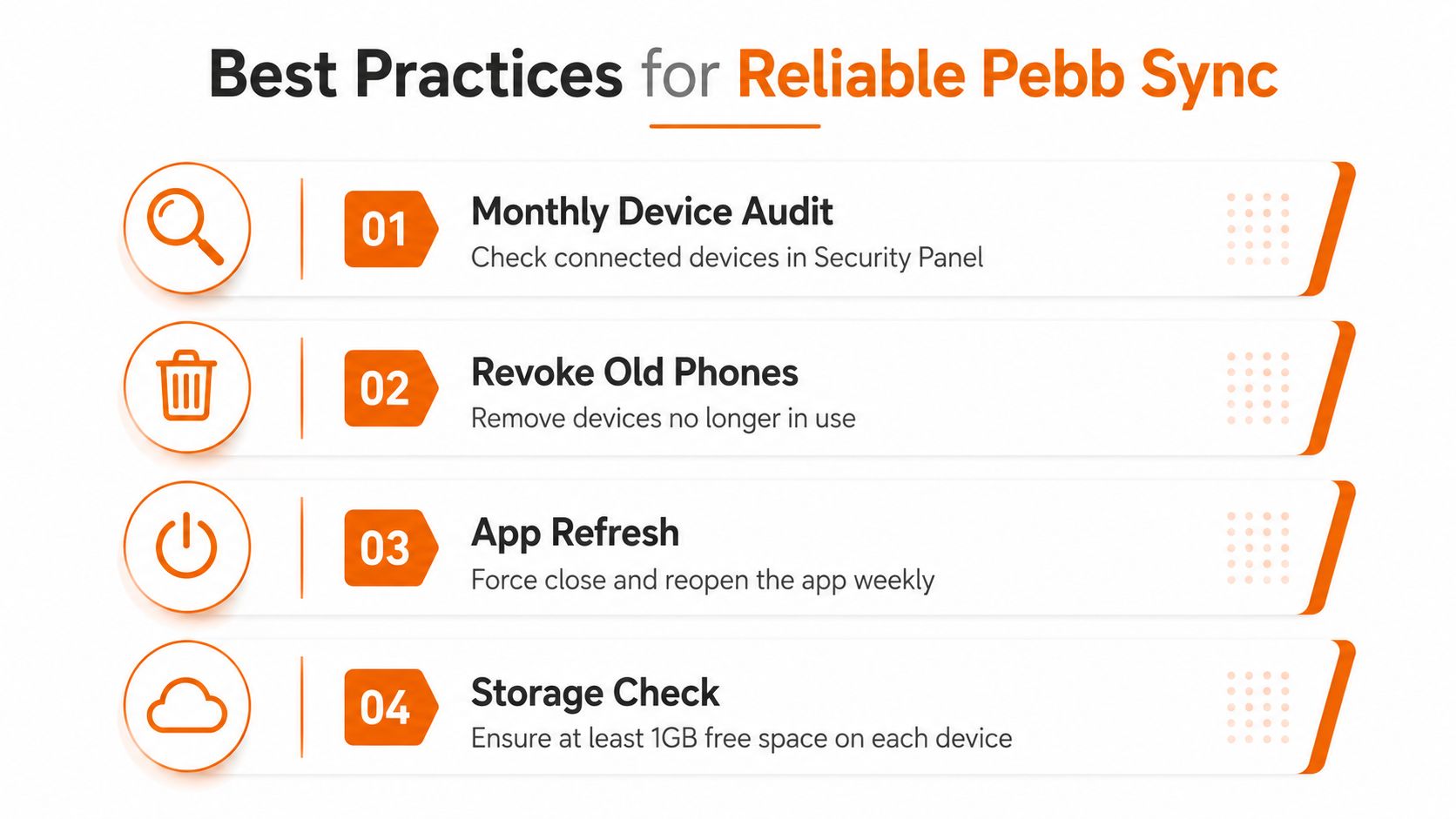
The device itself needs room to work. Check available storage on each endpoint, especially shared tablets that collect photos and downloaded documents. If you're building a broader protection plan for workplace files, the Finchum Fixes IT cloud backup guide offers useful context on backup choices beyond day-to-day app sync.
Make verification part of the shift
A deliberate two-device check is more valuable than a policy document nobody follows. Send a test message from the phone, confirm it on the shared tablet, then reply from the tablet and verify the response on the browser.
Keep the test short. The point is to catch a broken permission or expired session before an incident, delivery, or patient handover depends on it.
The system is only as reliable as its last observed handoff.
Review workspace permissions on a recurring calendar reminder, with extra attention to rotating contractors and temporary staff. Revoke access as soon as a person changes role. Small checks feel repetitive, but they prevent the expensive kind of surprise.
What Good Sync Feels Like When It Finally Works
A nurse finishes a note on her phone during rounds. A warehouse lead opens the same thread on a rugged laptop. A coordinator at headquarters reads the update on a desktop. Nobody asks which version is current because the conversation, file, and task state followed the work.
That experience comes from several quiet signals working together. Messages appear on the device already in the employee's hands. Edits arrive without a manual refresh. Conflicts are either resolved according to clear rules or surfaced for a person to review. The team doesn't need to understand the underlying mechanism to trust the result.
Good sync isn't a feature someone remembers to admire. It's the layer that lets a worker change screens without restarting the job.
The limits still matter. Large media uploads may need to be attached again. Enterprise-managed devices can lag behind policy changes. A permissions update can pause push delivery until the next session refresh. Teams should know those edges instead of promising that every handoff will be effortless.
The payoff is practical: fewer “did you see my message?” follow-ups, cleaner transfers between shifts, and less time spent hunting for the device that holds the truth. When syncing works, the workspace follows the worker. That's the standard worth testing.
Pebb brings chats, updates, tasks, files, shifts, and workplace communication into one connected space that employees can use across phone, tablet, and web. Visit Pebb to see how your team can build a more dependable handoff without making employees manage a pile of separate tools.
