
Replacement for SharePoint: How to Choose What Fits
Looking for a replacement for SharePoint? Compare real alternatives across communication, frontline access, governance, and migration so you pick what fits.
Dan Robin

You already know the feeling. A manager sends a policy update, someone in the field opens the link on a phone, and the system gets in the way before the information ever shows up. That's usually when teams start looking for a replacement for SharePoint, but the underlying problem isn't the platform name. It's that the people who need the content can't reach it fast enough, cleanly enough, or in a way that fits the workday.
What makes this messy is that SharePoint isn't just a file bin. It often holds controlled documents, intranet pages, workflows, permissions, and years of habits. So the right move is rarely “rip it out.” More often, the right move is to keep the parts that still do their job and add a simpler employee experience on top.
Choice | What changes | What stays | Best fit |
|---|---|---|---|
Replace | Move off SharePoint to a new platform | Little or nothing | When the current setup is too tangled or too weak for daily use |
Renovate | Improve the Microsoft 365 setup | Most content and governance | When SharePoint works, but adoption is poor |
Layer over | Add a mobile-first employee experience in front | SharePoint as the governed document layer | When controlled records need to stay put, but workers need a cleaner front door |
My view is simple. Don't start with the tool. Start with the people, the devices, and the content they use. If you get that right, the rest becomes a lot less dramatic.
The Moment We Started Shopping for a Replacement
At 6:14 a.m., the break room was already loud. A retail supervisor pulled out her phone, tapped a policy link her manager had just sent, and got bounced through the corporate portal before she could read a single line. She tried again, then gave up and asked someone on shift what had changed.
That's the moment that starts these projects. Not a software review. Not a steering committee. A worker standing in the middle of a shift, trying to do the right thing, and the system slows her down.
The problem is usually access, not storage
I've seen this pattern in retail, healthcare, logistics, and office teams. The content exists, but the path to it is ugly. The login flow is clunky, the navigation assumes desk work, and the thing people need is buried under layers they don't care about.
That's why a replacement for SharePoint search often starts with frustration that looks small from the inside and huge from the outside. If the policy lives in a place workers don't visit, it might as well not exist. A cleaner mobile experience is often the actual fix.
If the first mile fails on a phone, the whole internal tool stack starts to look broken.
Coexistence is the practical answer more often than people admit
I don't think every SharePoint issue calls for a full migration. Some teams need to keep SharePoint as the governed record layer because that's where the permissions, history, and integrations already live. Then they need a front door that ordinary people can actually use.
That's the frame I'd use. Replace when the old system is holding you back everywhere. Renovate when the core is sound but the experience is stale. Layer over when the document layer still earns its keep, but the employee experience doesn't.
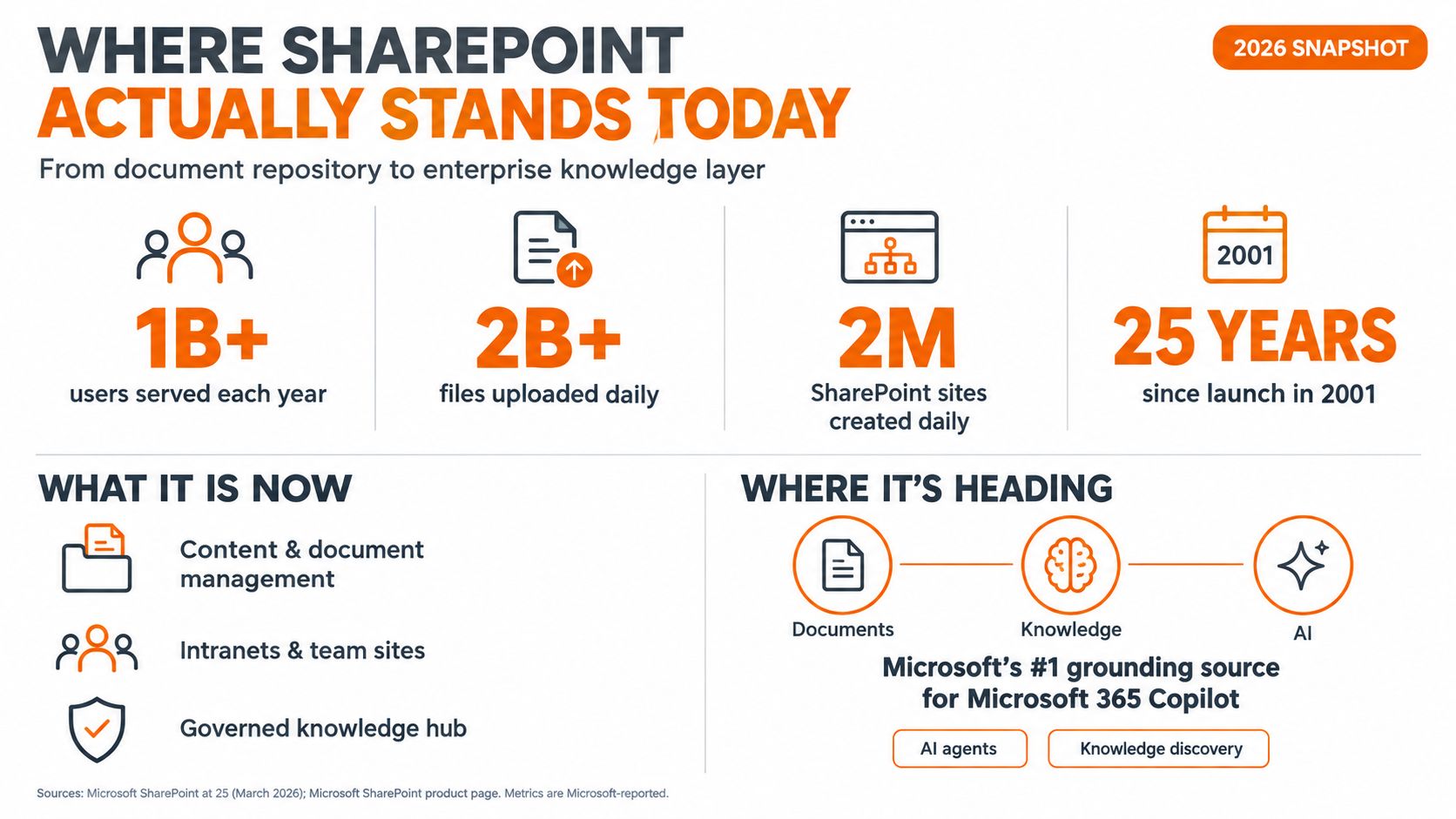
Where SharePoint Actually Stands Today
SharePoint is large enough that any serious decision has to account for its footprint. In December 2020, Microsoft said SharePoint Online had passed 200 million monthly active users after usage doubled in the prior year. Microsoft also defined monthly active users as people who intentionally interact with SharePoint-hosted content or connected experiences across web, desktop, or mobile clients. That is not a dusty file cabinet. It sits inside daily work for a lot of companies. Microsoft's 2020 SharePoint milestone post
It grew into a business layer, not just a document store
The history explains the sprawl. Microsoft launched SharePoint Portal Server in 2001, then kept adding editions and cloud-connected behavior over time. By 2009, Microsoft described SharePoint as a $1.3 billion business with more than 100 million users, and said roughly 78% of Fortune 500 companies used it. Earlier milestones show how fast it became embedded, with more than 10 million licensed seats by October 2002 and more than 300 partners building over 600 solutions. Microsoft's SharePoint history overview
That scale changes the choice. You are not comparing two apps. You are weighing one app against a habit stack.
The rough edges are operational, not abstract
SharePoint's limits are concrete and annoying. Microsoft documents a 400-character decoded path, a 250 GB maximum individual file size, a 5,000-item list-view threshold, up to 30 million items per list or library, up to 25 TB per site, and as many as 50,000 major versions. It also says version history can be configured from 100 to 50,000 major versions, which sounds flexible until someone has to govern it every day. Microsoft's migration speed guidance and Microsoft's version history limits
Migration speed matters too. Microsoft's guidance exists because moving content at scale is not a neat, one-click exercise.
That is why replacement decisions should not rest on feature checklists alone. A tool can be powerful and still be miserable for frontline work. What matters is whether people can use it without friction.
Should You Replace It, Renovate It, or Layer Over It
The first mistake I see is treating this like a vendor search. It's not. It's a strategy choice about content, risk, and audience.
Replace when the platform itself is the problem
If your SharePoint setup is a tangle of old sites, custom workarounds, and broken habits, replacement makes sense. That usually happens when the experience is so poor that employees avoid it, and when the organization doesn't depend on deep Microsoft 365 behavior for regulated content or internal processes.
But replacement has a real cost. One cited 100-user estimate puts first-year alternative, continued Microsoft 365, and migration costs at $75,000 to $87,000, compared with roughly $21,200 for maintaining the existing SharePoint environment. SharePoint alternatives cost comparison
Renovate when the core is still worth keeping
Some teams don't need a new system. They need better information architecture, cleaner permissions, and a more disciplined rollout inside Microsoft 365. If the main issue is that no one can find things, the answer may be governance and design, not a new product.
That's where a solid planning resource helps. If you're mapping a new intranet direction inside Microsoft's ecosystem, planning a SharePoint intranet in 2026 gives a useful lens for deciding what belongs in the core and what should move to the edge.
Layer over when workers need a better front door
This is the path most comparison posts skip, and it's the one I trust most in mixed workplaces. Keep SharePoint as the governed document layer, then place a mobile-first employee app on top for communication, access, and day-to-day use. That way regulated records stay governed, while workers get a simpler place to check updates, files, tasks, and shifts.
The internal part of that decision usually looks like this:
High compliance, deep Microsoft dependency: keep SharePoint where it is and improve the employee layer.
Weak adoption, simple content, mobile workforce: consider replacement.
Mixed workforce, existing records, rough user experience: layer over first, then simplify over time.
If you want a concrete example of the layered approach, Pebb's knowledge management platform sits in that category. It's the kind of tool that can sit in front of existing content instead of forcing a destructive migration.
Pick the move by content type, not by emotion. If the records are sound, don't burn the records layer down just to fix the front door.
What Alternatives Genuinely Differentiate On
Vendor pages all start to blur together after a while. Better search. Cleaner design. Strong governance. Those claims do not separate tools in real use. The actual differences show up in how a platform handles communication, documents, and the employee opening it on a phone at the far edge of the company.
Compare by the work people do each day
If your organization depends on conversation and culture, some tools handle that far better than others. If your main burden is controlled documents and auditability, that is a different category. If workers are mobile, tired, and using shared devices, the experience has to stay simple.
A cleaner way to read the market is by category, not by brand name alone. I would sort the options like this:
Alternative Category | Communication & Culture | Document Control & Search | Frontline Mobile Access | Governance & Permissions | Integrations | Analytics |
|---|---|---|---|---|---|---|
Employee app and engagement layer | Strong | Moderate | Strong | Moderate | Strong | Strong |
ECM or document platform | Weak to moderate | Strong | Weak to moderate | Strong | Moderate to strong | Moderate |
Portal or intranet platform | Moderate to strong | Moderate to strong | Moderate | Strong | Strong | Moderate to strong |
Self-hosted digital workplace | Strong | Strong | Strong | Strong | Strong | Strong |
That table is not a sales pitch. It is a decision filter. Some tools are built for daily communication and weak on records. Others handle records well and become a poor place for people to start their day.
Governance and integration matter more than shiny features
If your stack depends on HR, payroll, identity, or productivity tools, check the integrations before you care about the homepage. If the permissions model is brittle, a prettier interface will not fix it. If leaders cannot see usage clearly, the platform turns into another quiet cost.
For teams planning a deeper migration path, the guide to ECM migration planning treats content movement like an operational project, not a shopping exercise. That is the right lens.
Pick by audience, not by feature count
A platform that works well for a project manager on a laptop can still fail a warehouse crew on a shared phone. The reverse happens too. Legal and compliance may need a tightly governed document system, while communication and task work sit better in a lighter employee layer.
For a closer look at what a modern intranet platform should cover, see Pebb's modern intranet platform.
The right choice is the one your people will use under real conditions. Pick for the job they do every day, not for the longest demo script.
How to Run a Proof of Concept That Tells the Truth
Most demos are theater. A vendor shows the cleanest paths, the tidiest library, and the best-case dashboard. Real work does not happen that way, so your proof of concept should expose the mess, not hide it.

Start with content that resembles the mess you live with
Use a policy library, onboarding documents, operational forms, and one high-volume list with metadata. Leave the polished samples alone. The goal is to test the material that creates friction in normal work.
Bring in real users, not just admins. Include someone from the frontline, someone from operations, and someone who needs to find things fast during the workday. If those people struggle, the platform fails, no matter how tidy the admin console looks.
Measure the moments that matter
Set acceptance criteria around p95 search latency, ingest-to-search delay, upload speed, retrieval speed on mid-range phones, and what happens when connectivity drops. Those are the moments employees feel. They do not care how nice the architecture diagram looks.
Keep the migration test honest too. Use the same kind of content you expect to move in production, and watch for throttling, slowdowns, and failed transfers under load. If a system only works in a neat lab run, it is not ready for real use.
A demo that works on Wi-Fi in a conference room is not evidence. A mid-shift test on a phone is evidence.
Test the frontline conditions, not just the happy path
Shared-device login matters. Push notifications matter. Multilingual content matters if your workforce needs it. So does what happens when someone loses connectivity halfway through a shift. If a tool cannot hold up there, it is not ready.
Use a short checklist after each test run:
Can the user reach the content in fewer than a handful of taps?
Does search return useful results quickly enough to trust?
Can the worker act without opening a laptop later?
Can administrators explain permissions without a whiteboard session?
That is the truth serum. If a platform survives that, it is probably worth buying.
Three Workplaces, Three Sensible Choices
A retail supervisor with 40 hourly staff across five locations doesn't need a document shrine. She needs quick access to policies, shift updates, and a way to keep people aligned without assuming they sit at desks. In that setup, I'd keep the governed records layer and put a mobile-first employee experience in front of it.
A healthcare shift team is different. Nurses and techs rotate through units, share devices, and deal with information that can't drift. Here, the priority is tighter governance with a thin mobile shell so the right people see the right update at the right time. The experience has to be clean, but the audit trail matters just as much.
A 300-person distributed company with no true frontline is the easiest to overthink. If half the team works from home and half sits in an office, you may not need a full replacement at all. A better intranet, better search, and sharper knowledge organization may solve more pain than a full migration.
The same question gets different answers
What matters is the daily pattern of work. If the company runs on phones and shifts, favor mobility and communication. If it runs on controlled content, favor governance. If it runs on mixed knowledge work, don't force a dramatic migration just because a vendor deck made it sound clean.
The mistake is choosing a model before looking at the audience. Start with who needs what, then work backward.
The Full Cost of Switching, Not the Sticker Price
The first-year bill for leaving SharePoint is never just the subscription line. It includes migration labor, overlap between systems, downtime, and the cleanup no one mentions in a demo.
The expensive parts hide in the middle
You pay people to inventory content, rebuild permissions, test links, move metadata, and explain the new workflow. You also pay for the overlap period while both systems stay live, because nobody wants to cut over blind. Then there is the productivity dip while people relearn where things live and how to share them.
That is why I ignore sticker-price comparisons. A cheaper platform can become expensive fast if it creates confusion or forces a lot of manual cleanup.
Versioning and migration shape the total workload
SharePoint version history is configurable at multiple levels, and Microsoft's current guidance allows a manual limit from 100 to 50,000 major versions. Under automatic storage, SharePoint keeps all versions from the first 30 days, then moves to hourly versions from 30 to 60 days, daily versions from 60 to 180 days, and weekly versions after 180 days, up to the configured maximum.
That matters because versioning is not free. It affects storage, recovery, and the history the business expects to keep. If you change the setting, old versions do not disappear at once. Microsoft says versions above a new count limit are trimmed gradually as files are updated. Microsoft's version FAQs
Migration speed also varies by content shape, and messy libraries slow everything down. The more metadata, exceptions, and cleanup work you have, the more your timeline stretches. If your libraries are messy, your cutover will be messy too. As noted earlier, the migration process itself deserves early planning, not last-minute optimism.
Budget for the work you cannot see
I would treat the 100-user example as a warning sign, not a universal model. The point is simple: first-year spend climbs quickly once you count labor, overlap, and the hidden cleanup that follows a move.
If you are comparing options, include the full operating cost, not just the license. See Pebb pricing if you want a simple starting point for what a mobile-first employee app costs relative to a broader internal tool stack.
What to Do This Week Before the First Demo
Don't open with vendor calls. Open with your own house.
First, audit your active sites, not the whole tenant. I want to know what people use, not what's been sitting around for years. Second, talk to ten frontline or remote workers and ask how they reach information today, because their path is the one most likely to fail.
Third, map the workloads that depend on SharePoint's deep features. Those may need to stay. Fourth, decide whether you're replacing, renovating, or coexisting, and write down why in plain language.
Fifth, write a one-page proof-of-concept brief and only invite vendors who can meet it. If they can't show upload, search, and mobile retrieval on your content, they're not serious enough for your time.
The best SharePoint replacement project I've seen wasn't really a replacement project. It was a cleanup of assumptions, a reset of access, and a calmer way of deciding what the business needed. That's usually where the win lives.
If you're weighing a replacement for SharePoint and want a mobile-first layer that brings chat, updates, knowledge, tasks, and file sharing into one place, take a look at Pebb. It's built for teams that need better daily access without forcing a reckless migration. If that sounds like your situation, visit Pebb and see whether it fits the way your people really work.
