Author: Ron Daniel
How to create a searchable company knowledge library for deskless workers
Build a mobile-first, searchable knowledge library for frontline teams—organize SOPs, tag content, improve search, and keep articles current.
Most frontline workers waste hours every week searching for answers. I’ve seen it firsthand. A warehouse associate scrambling to find the latest safety procedure. A retail employee flipping through outdated binders for a return policy. Worse, a new hire asking the same question five times because no one knows where the info lives. Sound familiar?
Here’s the kicker: deskless workers make up 80% of the global workforce - that’s 2.7 billion people. Yet, most tools out there are built for desk jobs, leaving frontline teams stuck with messy group chats, paper manuals, and guesswork. It’s a recipe for confusion, mistakes, and wasted time.
At Pebb, we’ve been in the trenches with deskless teams, and we know the struggle is real. That’s why we built a mobile-first knowledge library that simplifies everything. Imagine your team having instant access to SOPs, safety checklists, and HR policies - all searchable, up-to-date, and tailored to their role. No more chaos, just clarity.
In this guide, I’ll show you how we’ve helped teams organize their knowledge, make it easy to find, and keep it relevant. Whether you’re dealing with high turnover, multiple locations, or just want to stop answering the same question 20 times a day, you’re in the right place. Let’s dive in.
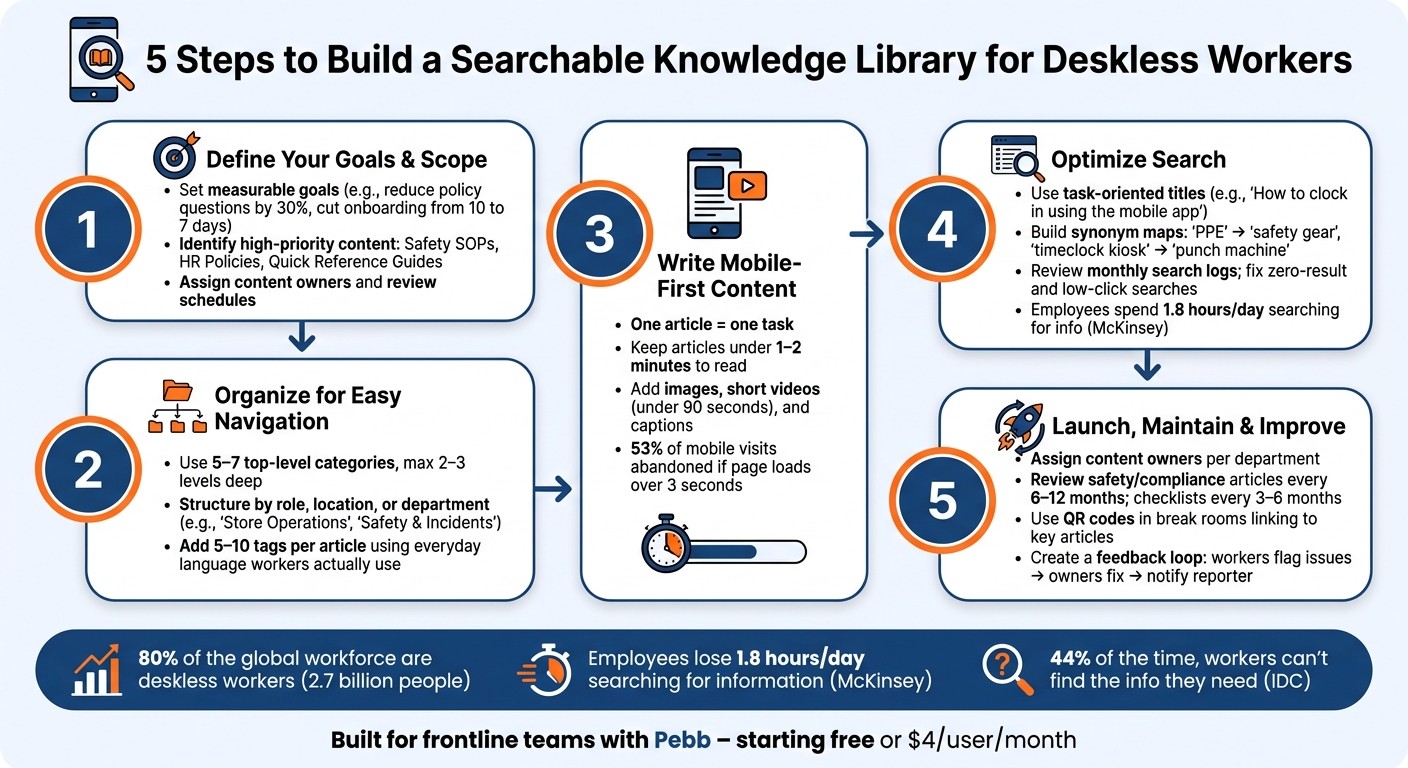
5 Steps to Build a Searchable Knowledge Library for Deskless Workers
Step 1: Define Your Goals and Scope
Let’s be honest - without clear direction, a knowledge library can quickly spiral into a mess of random articles no one uses. That’s why starting with a solid purpose is key.
Set Clear Goals for Your Knowledge Library
Before diving into content creation, nail down specific, measurable goals. Forget vague aspirations like "improve communication" - instead, aim for something concrete: "Reduce policy-related questions to supervisors by 30% within six months" or "Cut new-hire onboarding time from 10 days to 7 days." These kinds of goals give your project focus and make it easy to track success.
Here’s what you should measure:
How long it takes employees to find answers
How often managers get repeat questions
Safety incidents tied to unclear instructions
Content usage stats (not just the number of articles published)
Once you know what you’re working toward, you can zero in on the content that will actually move the needle.
Identify the Most Important Content for Deskless Workers
Let’s talk priorities. The best way to figure out what content matters most? Look at where employees struggle. Dig into help-desk tickets, common supervisor questions, and onboarding feedback. This will show you where knowledge gaps are causing real problems - like mistakes, delays, or even safety risks.
From there, focus your initial content efforts on the areas with the biggest impact. Here’s a simple framework to guide you:
Content Type | Purpose | Priority |
|---|---|---|
Safety procedures & checklists | PPE requirements, incident reporting, emergency steps | High |
Standard operating procedures (SOPs) | Daily tasks and critical workflows | High |
HR policies | Time-off requests, scheduling rules, benefits FAQs | High |
Customer service standards | Scripts, escalation paths, service expectations | Medium |
Quick reference guides | One-page how-tos, troubleshooting steps | Medium |
Team directories | Contact info, roles, escalation contacts | Medium |
Focus on the essentials first - like safety checklists and SOPs. These are the things employees need on day one. You can always add less urgent content later.
Know Your Audience and Set Content Rules
Now that you’ve prioritized the key content, it’s time to think about structure. Start by understanding your audience. A warehouse associate and a shift supervisor need very different information, right? So, organize content by role, location, and shift to make sure everyone gets what’s relevant to them.
Next, set up some simple content rules to keep things organized. Here’s what works for us:
Assign a content owner for each area (e.g., the Safety Manager handles safety documents, HR manages policy articles).
Set a review schedule - every 6 or 12 months works well - and include a "last updated" date on every article.
Define who can create, edit, and approve content.
Give employees an easy way to flag outdated or incorrect info.
This lean governance approach keeps your library accurate without bogging things down in red tape. Start small, focus on what workers actually need, and let real usage data guide future updates.
Step 2: Organize Information So It's Easy to Find
Once you've nailed down the content, the next step is making sure workers can find it without a hassle. Think about it - if a frontline employee needs to double-check a procedure between tasks, they’re not going to waste time digging through endless folders. The goal? Answers should be no more than two taps away.
Build a Simple, Clear Content Structure
The key here is to keep navigation and communication straightforward. Stick to 5–7 top-level categories and limit the structure to 2–3 levels deep (Category → Subcategory → Article). Anything more complex can overwhelm workers, especially if they're using smaller screens like phones or tablets.
Here’s a tip: name the categories based on how employees actually think about their work - not how your organizational chart looks. For example, "Safety & Incidents", "Schedules & Time Off", or "Customer Issues" are far more intuitive than something like "Operational Excellence."
Let’s say you’re working in retail. Your categories might look something like this:
Store Operations
Product & Pricing
Customer Service
Safety & Loss Prevention
HR & Scheduling
For manufacturing, you might swap those for:
Work Instructions
Equipment & Maintenance
Quality & Compliance
Safety Procedures
HR & Payroll
The idea is that any worker should glance at the category list and immediately know where to click. Once the structure is in place, refine the discoverability of each article by using consistent tags and keywords.
Add Tags and Keywords to Improve Search Results
Here’s where a lot of knowledge libraries miss the mark - they use overly formal policy language, but workers search the way they talk. Someone trying to find out how to report an injury at work might type "got hurt at work", "accident", or "workers comp" instead of "Incident Escalation Procedure."
To bridge this gap, tag every article with 5–10 relevant keywords. Let’s say you have an article titled "How to Report a Workplace Injury." You’d want to include tags like:
"accident"
"workers' comp"
"OSHA"
"first aid"
"incident report"
This way, no matter how someone phrases their search, they’ll land on the right article. To keep things consistent as your library grows, build a shared keyword list for your team so managers use the same tags across similar content.
"A good topic should group documents that naturally belong together." - Pebb Help Center
This tagging system works hand-in-hand with Pebb's advanced search tools, making it effortless for employees to find what they need.
Use Pebb's Knowledge Base to Organize by Team or Location
Pebb’s flexible Spaces model takes this structure to the next level. Instead of cramming everything into one giant library, you can create separate Spaces for specific teams, departments, or locations - like "Housekeeping", "Dallas Store", or "Construction Site A."
Here’s how it might break down:
A shared "Everyone" Space for company-wide essentials like the employee handbook, payroll info, and federal holiday schedules.
Department Spaces for team-specific content, such as cleaning standards for the housekeeping crew or inspection checklists for quality control.
Location Spaces for branch-specific procedures, like store opening/closing protocols or local safety guidelines.
Project/Site Spaces for field teams, storing things like site maps, equipment manuals, or PPE rules.
Space Type | Example Content | Who Sees It |
|---|---|---|
Everyone Space | Employee Handbook, Benefits, Payroll | All employees |
Department Space | Room Cleaning Standards, Inspection Checklists | Housekeeping team |
Location Space | Store Opening/Closing, Local Safety Rules | Specific branch staff |
Project/Site Space | Site Maps, Equipment Manuals, PPE Rules | Field/construction workers |
Even on Pebb’s free plan, you get unlimited Spaces, which means even small teams can stay organized without worrying about extra costs. Need advanced permissions for manager-only content? That’s available with the Premium plan at just $4 per user per month.
Step 3: Write Content That Works on Mobile
Once you've nailed down your library structure, it's time to focus on crafting content that’s easy to use on mobile devices. Here's why this matters: imagine a warehouse associate pulling up a safety procedure mid-shift or a retail team member handling a return while juggling customers. They don’t have time to scroll through walls of text. They need quick, clear answers - right when they need them.
Keep Articles Short and Focused
Here’s the golden rule: one article, one task. If you’re writing something like “How to Process an Online Return In-Store,” stick to that single task. Don’t throw in extra details or side notes meant for managers - it just complicates things for frontline workers.
A clear, consistent format can make all the difference. Here’s a structure we swear by:
When to use this: One sentence explaining the context.
Before you start: A few quick bullets (like system access or approvals needed).
Steps: Numbered, concise steps - each no more than 1–2 lines.
If something goes wrong: A brief note on next steps or troubleshooting.
Research from Nielsen Norman Group shows that people read only 20–28% of the words on a page - and that number drops even more on mobile. That’s why we focus on delivering the essentials: safety warnings, approvals, and key actions. Aim for articles that take no more than 1–2 minutes to read. If the process is too complex, split it into two linked articles instead of overwhelming users with one long guide.
Now, let’s take it up a notch by adding visuals.
Add Images, Videos, and Links to Support Understanding
For tasks that involve hands-on steps, visuals can be a game-changer. A well-placed photo or short video often communicates faster than text. For example, if you’re explaining how to reset a handheld scanner, a cropped screenshot with an arrow pointing to the right button can save a lot of confusion.
Here’s how we approach visuals:
Place images right below the step they explain.
Keep them tightly cropped to highlight key details.
Compress them so they load quickly - because no one wants to wait. (Fun fact: 53% of mobile visits are abandoned if a page takes over 3 seconds to load.)
Short videos are fantastic for showing physical tasks like cleaning equipment, setting up devices, or even customer interactions. Keep videos under 90 seconds, shoot them in vertical or square formats, and always add captions. That way, even in noisy environments, the message gets across. And don’t forget to pair videos with a quick step-by-step list so workers can jump to specific parts without replaying the whole clip.
But visuals aren’t the only way to make content more accessible - let’s talk about integrating it into workflows.
Connect Knowledge Articles to Other Pebb Features
One of my favorite things about Pebb is how seamlessly you can weave knowledge articles into everyday tasks. With the "Copy Link" feature, you can share a guide in work chat, embed it in a news feed post, or attach it to a task description. This ensures the right information pops up exactly when and where it’s needed.
For instance, say you’re rolling out a new return policy. You can announce it in an internal news feed and include a direct link to the procedure. Or, if there’s a “Closing Shift Checklist,” link it directly to shift assignments so employees see it before clocking in. This kind of contextual access can save up to 35% of the time workers usually spend searching for information.
When your content is mobile-friendly, visually clear, and tied directly to workflows, you’re setting your team up for success - no matter how fast-paced their day gets.
Step 4: Make Your Knowledge Library Easy to Search
Think about this: what good is great content if no one can find it? According to McKinsey, employees spend a staggering 1.8 hours every day just searching for information - that's nearly 19% of the workweek lost. Now, imagine a deskless worker in a noisy warehouse or a bustling kitchen trying to search for something quickly. If the search function isn’t up to par, productivity takes a hit. That’s why getting search accuracy right is so important.
Here’s a tip that’s worked wonders for us: use task-oriented titles that reflect how people actually talk. For example, "How to clock in using the mobile app" is way more effective than "Time and Attendance Policy v2.1." Always put the key action at the start of the title to make it easy to spot, especially on mobile screens.
But don’t stop there. Fill out metadata fields consistently - things like category, team, location, and document type. Then, add 5–10 tags per article that cover tasks, equipment, and common issues. We’ve also built a simple synonym map that pairs formal terms with everyday language. For instance, "PPE" becomes "safety gear", and "timeclock kiosk" translates to "punch machine." This way, no matter how someone phrases their search, they’ll land on the right page.
Review Search Data to Spot Gaps
Your search logs are a treasure trove of insights. Did you know an IDC study found that 44% of the time, workers can’t find the information they need? Often, it’s because the content either doesn’t exist or isn’t labeled properly. Reviewing monthly search logs can help you catch these issues. Pay close attention to zero-result searches - they’re like neon signs telling you what’s missing.
And don’t overlook low-click results. If workers search for something like "closing checklist" and don’t click any results, it’s a sign that your titles or descriptions aren’t resonating. Try reworking the title, fine-tuning the description, and adding more relevant tags. Focus on fixing the most critical gaps first, like safety or compliance-related content.
How Pebb Makes Search Smarter
With Pebb’s Knowledge Base, we’ve made searching a breeze. Workers can narrow their search to specific topics - like "Safety Procedures" - so they’re not digging through the entire library. Managers love the "Copy Link" feature, which lets them send direct links to key documents in work chats, skipping the search process altogether. Clear category labels make the library visually easy to scan, and role-based permissions ensure workers only see content that’s relevant to them. These tools make finding critical information fast and simple, which is a game-changer for mobile-first teams.
Step 5: Launch and Keep the Library Up to Date
Once your library is built, the real work begins - getting your team to use it and ensuring it stays accurate. Trust me, nothing will sink your library faster than outdated content.
Assign Owners and Set a Review Schedule
Every piece of content needs a clear owner. Think of it this way: your Safety Manager should handle all safety procedures, your Store Operations Lead oversees shift checklists, and your Help Desk Manager keeps IT how-tos in check. By making specific people responsible, you ensure someone’s always accountable for keeping things up to date.
Now, let’s talk timing. Some content changes faster than others, so review schedules should reflect that:
Safety and compliance articles: Every 6–12 months
Operational checklists: Every 3–6 months
Seasonal content: Right before the season starts
Pebb’s Knowledge Base makes this easy with metadata fields like "Owner", "Last updated", and "Next review date." When a review is due, you can assign it as a task directly in Pebb. This way, the owner gets a clear reminder with a deadline, helping keep everything fresh without extra hassle.
With these steps, your library evolves right alongside your team’s needs.
Introduce the Library to Your Team and Build the Habit
Having a library is great, but getting your team to actually use it? That’s the game-changer. And let me tell you, a single announcement won’t cut it.
Start by asking your team where they lose time. Maybe they’re waiting on a manager to answer a simple question, scrolling endlessly through old chats, or flipping through a binder that’s seen better days. Then, show them how the library solves those problems. A quick live demo - like finding a key article on their phone - will resonate way more than an email ever could.
Here’s another trick: place QR codes in high-traffic areas like break rooms or near equipment, linking directly to frequently used articles. And when someone texts you a question you know is covered, don’t just give them the answer. Instead, guide them through finding it in the library. Over time, this reinforces the habit of checking the library first, making it an integral part of their workflow - not a fallback.
Collect Feedback and Make Improvements
Feedback is your secret weapon for keeping the library relevant. Make it easy for workers to share their thoughts. In Pebb, set up a "Knowledge Feedback" chat channel where team members can quickly flag anything that’s confusing, outdated, or missing. You can also add a note at the bottom of articles, like "See something wrong? Contact your designated owner", so they know exactly how to report issues.
When feedback rolls in, turn it into action. Create a Pebb task with a clear owner, due date, and description. Once the issue is resolved, notify the person who flagged it with a link to the updated article. That simple "you told us, we fixed it" loop builds trust and encourages more feedback. Over time, this process keeps your library sharp and reinforces its value as the go-to resource for your frontline team.
Conclusion: A Knowledge Library That Works for Frontline Teams
Creating a searchable knowledge library for deskless workers isn’t rocket science - it’s all about taking clear, deliberate steps. Set clear goals, organize your content thoughtfully, write with mobile users in mind, fine-tune search functionality, and keep everything updated. Nail these five steps, and you’ll have a system your frontline team can actually rely on.
Here’s why it matters: employees lose precious time digging for information they need to do their jobs. A well-structured library slashes that wasted time, leading to fewer mistakes, faster onboarding, and smoother operations - no matter the shift.
At Pebb, we’ve taken it a step further. Our Knowledge Base doesn’t just sit on the sidelines; it integrates seamlessly with work chat, tasks, and announcements. This way, the library becomes part of your team’s daily rhythm, turning it into a tool they use constantly - not something they forget exists.
The best part? You don’t have to overhaul everything at once. Start small. Focus on your top 10–20 essential SOPs, safety protocols, or FAQs. Test it with one team or location, gather feedback, and expand from there. Most teams can have a solid system up and running in just a few weeks. And with Pebb’s premium plan costing just $4 per user per month - or being completely free for teams of up to 15 people - there’s no excuse to keep relying on group chats, paper binders, or word-of-mouth.
Your frontline team deserves better than endless searching for answers. Give them a tool where the right information is always just a quick search away.
FAQs
What should we publish first for frontline teams?
When I joined Pebb.io, one of the first things I noticed was how much easier it was to access everything I needed to hit the ground running. We made it a priority to publish all the essential onboarding materials - training videos, team contacts, and company policies - in one convenient, searchable hub. No more digging through endless email threads or flipping through outdated manuals.
We focused on the stuff people actually use every day: safety protocols, updated procedures, and quick customer service tips. And here's the game-changer - we made sure everything was mobile-friendly. Whether you're on the floor, in the field, or grabbing a coffee, you can pull up what you need in seconds.
Centralizing these resources in Pebb wasn’t just about saving time; it’s about keeping everyone informed and engaged. When the answers are easy to find, your team can focus on what really matters - getting the job done right.
How do we set tags so search actually works?
To keep your knowledge library in Pebb easy to navigate, stick to consistent naming conventions for your files and folders. Trust me, this small step saves a ton of headaches later. Add cross-functional tags like Remote Work or Quarterly Planning to make filtering a breeze. On top of that, Pebb’s auto-generated tags work alongside your custom ones, creating a blend that simplifies searches. Just make sure to review your tagging setup regularly to align it with how your team actually looks for information.
How do we keep the library accurate over time?
Keeping your library accurate isn’t a one-and-done task - it’s an ongoing effort. Think of it as a living resource that thrives on regular updates. Here’s how we approach it at Pebb:
We stick to a clear review schedule. For example, technical guides get a monthly check-in, while more stable policies are reviewed annually. To make it manageable, we assign specific content owners to oversee different sections. Automated reminders? Absolute lifesavers - they help us stay on top of deadlines without the chaos.
One feature I love about Pebb is how employees can flag outdated info directly in group chats. It’s quick, collaborative, and keeps things running smoothly. Analytics and user feedback also play a big role. We focus our updates on high-traffic content - the stuff people are actually using - so we’re putting energy where it matters most.
It’s all about keeping things fresh and functional, so your team always has access to the right information when they need it.
