
How to Manage Employee Shifts Without Spreadsheets, WhatsApp, or Last-Minute Confusio
James Dean

Managing employee shifts sounds simple until you are the person actually doing it.
You need to know who is available, who requested time off, who can work mornings, who can cover evenings, who needs approval, who already worked too many hours, and who still has not confirmed their shift. Then, once the schedule is ready, you need to send it to everyone and hope nobody missed the message.
A lot of teams still do this with spreadsheets, WhatsApp groups, screenshots, or paper schedules. It works for a while, but once your team grows, the problems start showing up quickly.
Someone does not see the updated schedule.
Someone thinks they are working Tuesday, but you moved them to Wednesday.
Someone requested time off, but it was buried in a message thread.
Someone asks, “Am I working tomorrow?” even though you already sent the schedule three times.
This is exactly the kind of problem we built Pebb Shift Scheduling to solve.
The simple way to think about shift scheduling
At Pebb, we think employee scheduling should answer four basic questions:
Who is working?
When are they working?
Where are they working?
What role are they covering?
That sounds basic, but those four questions are the foundation of every shift-based team.
For example, a restaurant may need a host, two servers, one bartender, two kitchen staff, and a shift manager for Friday evening. A retail store may need a cashier, floor associate, stockroom employee, and store manager. A hotel may need front desk, housekeeping, maintenance, and night shift coverage.
Instead of building this manually in a spreadsheet, Pebb lets managers create shifts, assign employees, add roles, publish the schedule, and notify the relevant team members from one place.
Step 1: Create a Space for the team or location
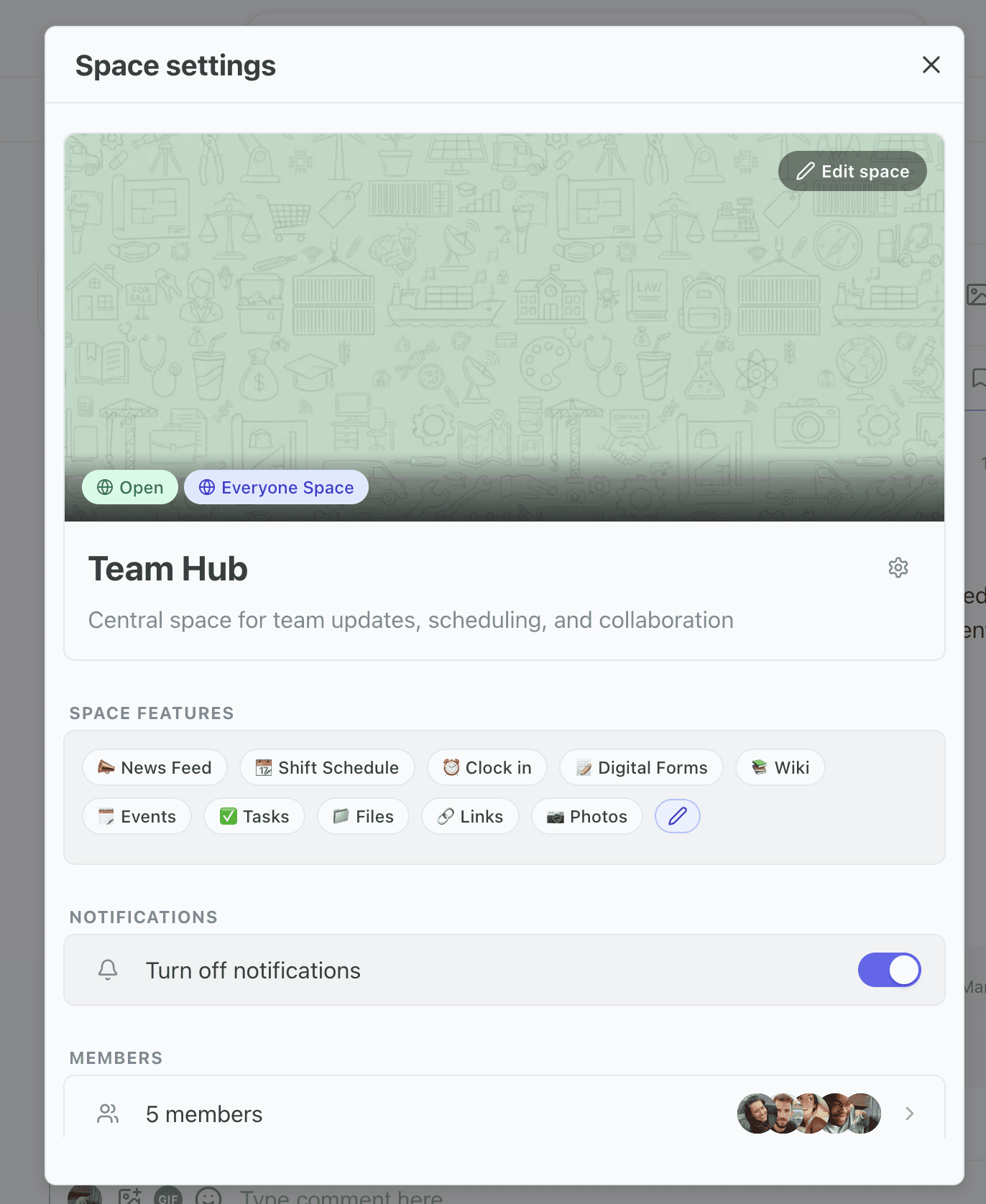
In Pebb, Shift Scheduling lives inside a Space.
A Space can represent a location, branch, department, project, team or even just everyone. For example:
A retail company can create one Space for each store.
A restaurant group can create one Space for each restaurant location.
A hotel can create Spaces for Front Desk, Housekeeping, Maintenance, and Everyone.
A construction company can create one Space per job site.
This keeps schedules clean. The New York store manager does not need to manage the Boston schedule. The housekeeping manager does not need to see kitchen shifts. Each Space has the people and tools that are relevant to that group.
Step 2: Build the weekly schedule in draft mode
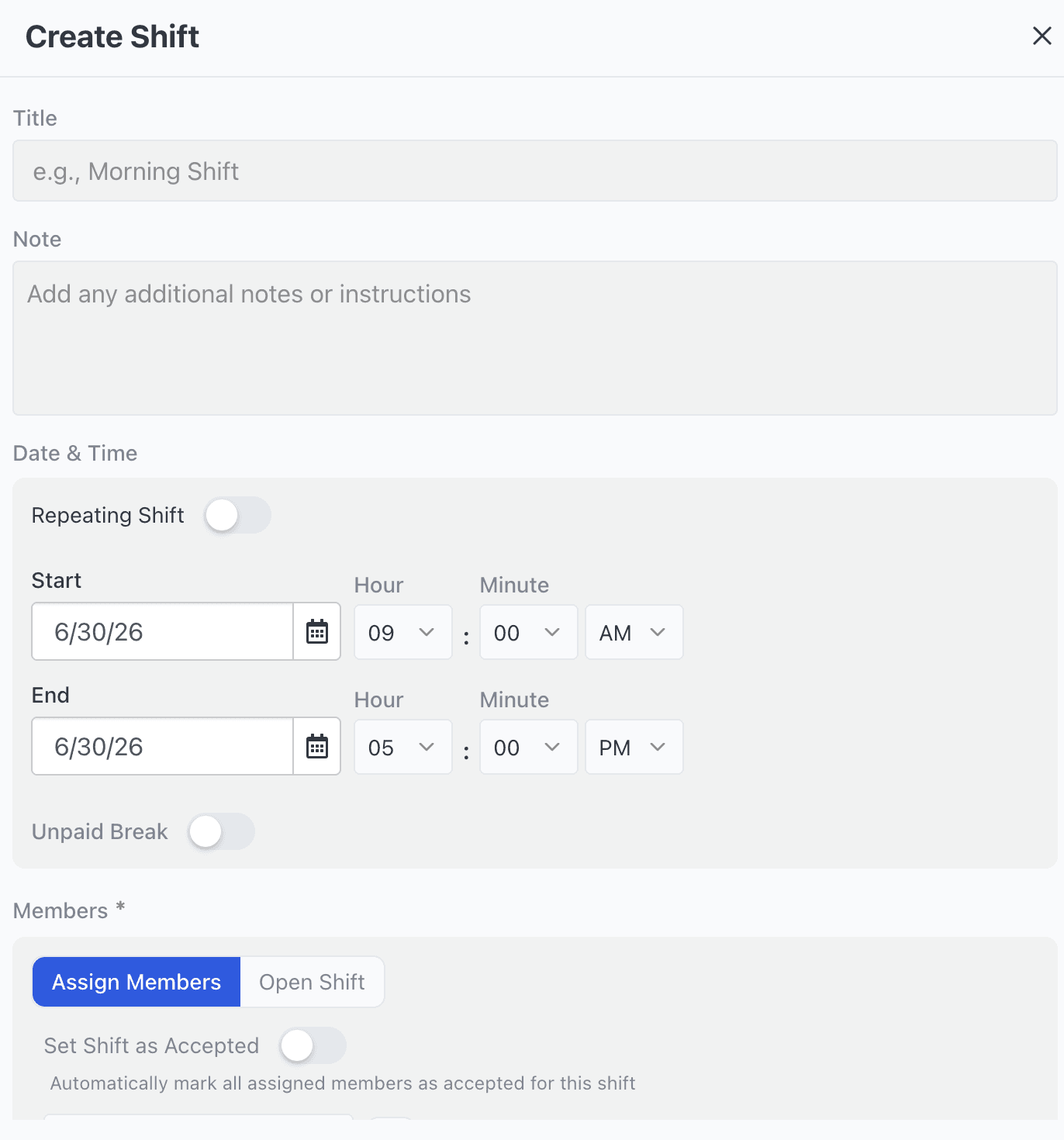
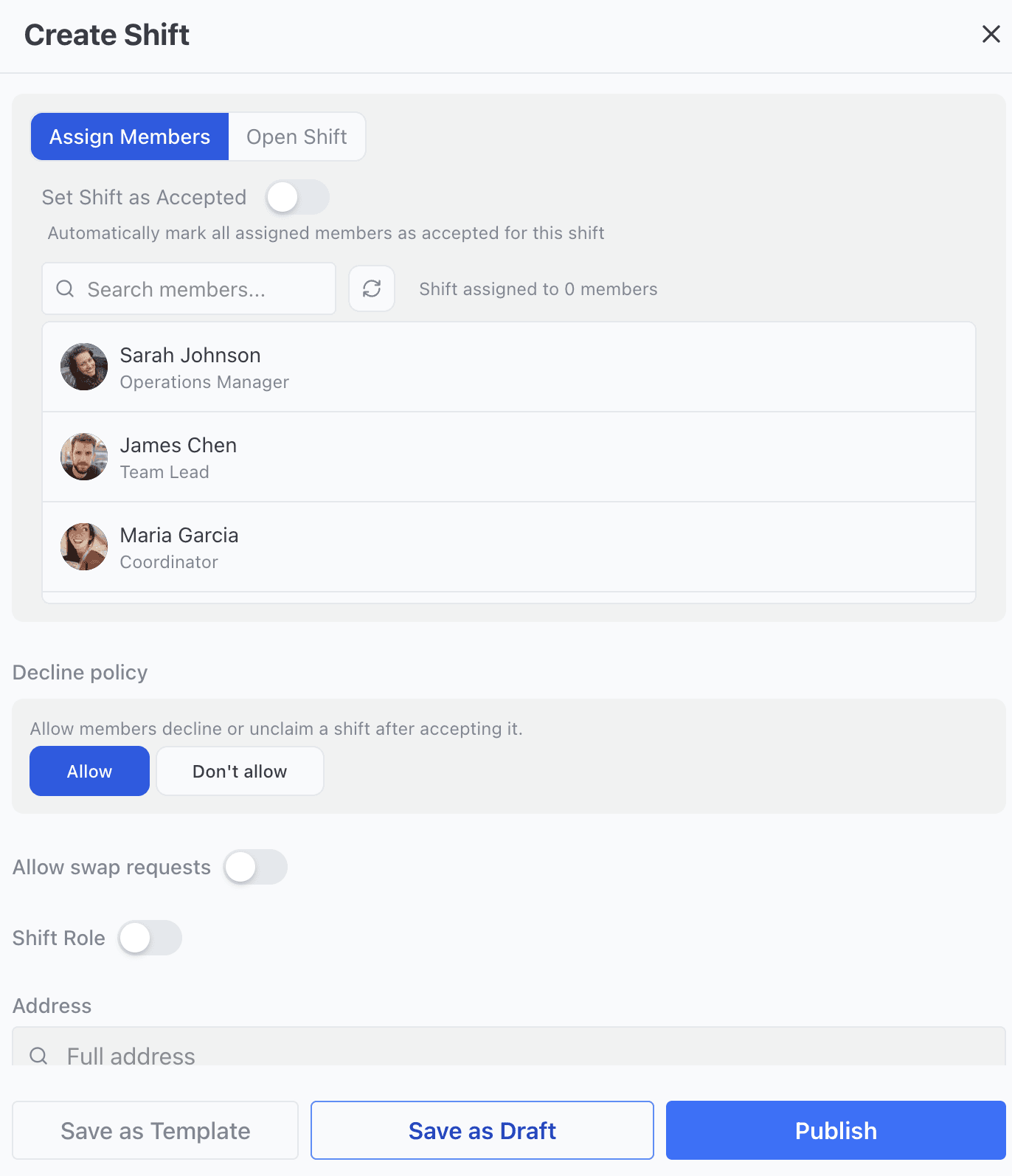
Most managers do not want employees seeing the schedule while it is still being built. Maybe you are still checking who is available. Maybe you are waiting for a time off request. Maybe you are moving people around before finalizing the week.
That is why draft mode is useful.
You can build the schedule first, review it, make changes, and only publish it when it is ready. This is much better than sending half-finished screenshots or updating a spreadsheet that employees may already be looking at.
A good weekly scheduling rhythm looks like this:
Review time off and availability.
Create the shifts you need.
Assign employees to the right roles.
Check for gaps.
Publish the schedule.
Notify the team.
Step 3: Assign shifts to specific employees
Assigned shifts are best when you already know exactly who should work.
For example:
Daniel is always the opening manager on Monday.
Maya works the front desk every Tuesday morning.
Carlos is assigned to the warehouse night shift.
Sarah is scheduled as the cashier for the weekend shift.
In Pebb, managers can create assigned shifts and attach them to specific employees. Employees can then view their shifts from the Pebb app and know exactly when they are expected to work.
This is especially helpful for teams where people do not sit at a desk all day. Frontline employees need a simple way to check their schedule from their phone without searching through old messages.
Step 4: Use open shifts when you need coverage
Not every shift needs to be assigned manually.
Sometimes you know you need coverage, but you do not know who will take it yet. This is where open shifts are useful.
For example:
A restaurant needs four people for the Friday evening rush.
A retail store needs two extra employees during a holiday sale.
A cleaning company needs three people for a new job site.
An event team needs eight temporary staff members for one shift.
Instead of messaging everyone one by one, you can create open shifts in Pebb and let employees claim them.
Managers can also decide whether claims should be automatic or require admin approval. This gives flexibility. A general floor shift may be open for anyone to claim, while a supervisor or chef shift may require manager approval.
Step 5: Let employees manage availability and time off
One of the hardest parts of scheduling is knowing when people cannot work.
If availability is managed through texts, calls, sticky notes, or verbal reminders, mistakes are almost guaranteed. Someone said they could not work Wednesday, but the message was missed. Someone requested time off, but it was not visible while the schedule was being created.
In Pebb, employees can add unavailable time and request time off. Managers can see that information while planning the schedule, which helps prevent assigning someone when they are not available.
This reduces back-and-forth messages and makes the schedule feel more organized for everyone.
Step 6: Publish the schedule and notify employees
Once the schedule is ready, managers can publish it.
This is one of the biggest differences between a real employee scheduling app and a spreadsheet. A spreadsheet may show the schedule, but it does not automatically make sure the right employees know about it.
With Pebb, managers can publish the schedule and notify assigned members or the whole Space. Employees can then check their shifts directly from the app.
So instead of sending a message like, “New schedule is in the WhatsApp group, please check it,” the schedule itself becomes part of the team’s work app.
Step 7: Keep scheduling connected to the rest of work
The schedule is not separate from everything else.
If someone has a question, they can use Team Chat.
If the manager needs to post a weekly update, they can use the News Feed.
If the team needs opening and closing checklists, they can use Tasks or Forms.
If employees need policies or procedures, they can use the Knowledge Library.
If work hours need to be tracked, they can use Clock In.
That is why we built Shifts as part of Pebb instead of as a separate standalone tool. Most teams do not only need a calendar. They need a simple way to run the day.
Final thought
Managing employee shifts should not require five tools, three group chats, and a spreadsheet that only one person understands.
With Pebb, managers can create shifts, assign employees, publish schedules, notify the team, track availability, use open shifts, and keep scheduling connected to the rest of employee communication.
If you are searching for a way to manage employee shifts and make sure your team actually sees the schedule, Pebb was built for exactly that.
