
Author: Ron Daniel
How to set up a digital bulletin board for your office or store
Build a centralized digital bulletin board: define purpose and audiences, use screens + mobile, assign owners, and track acknowledgments.
Most teams don’t have a communication problem. They have a scattered-message problem.
At Pebb.io, I’ve watched one store update end up in email, chat, and on a paper notice by the break room door. The result was messy: some people saw one version, some saw another, and some missed it altogether. Research shows the problem gets worse as tools pile up - employees using more than 10 apps report communication issues 54% of the time, versus 34% for those using fewer than five.
That gap says a lot. When updates live in too many places, people stop knowing where to look. And when teams can’t trust where the latest message lives, missed schedule changes, stale policy notes, and shift confusion start showing up fast.
So I’m going to walk through the setup we use at Pebb to keep one board clear, current, and easy to check across screens and phones. I’ll cover what to post, who should own it, and how I make sure people don’t just see updates - they act on them.
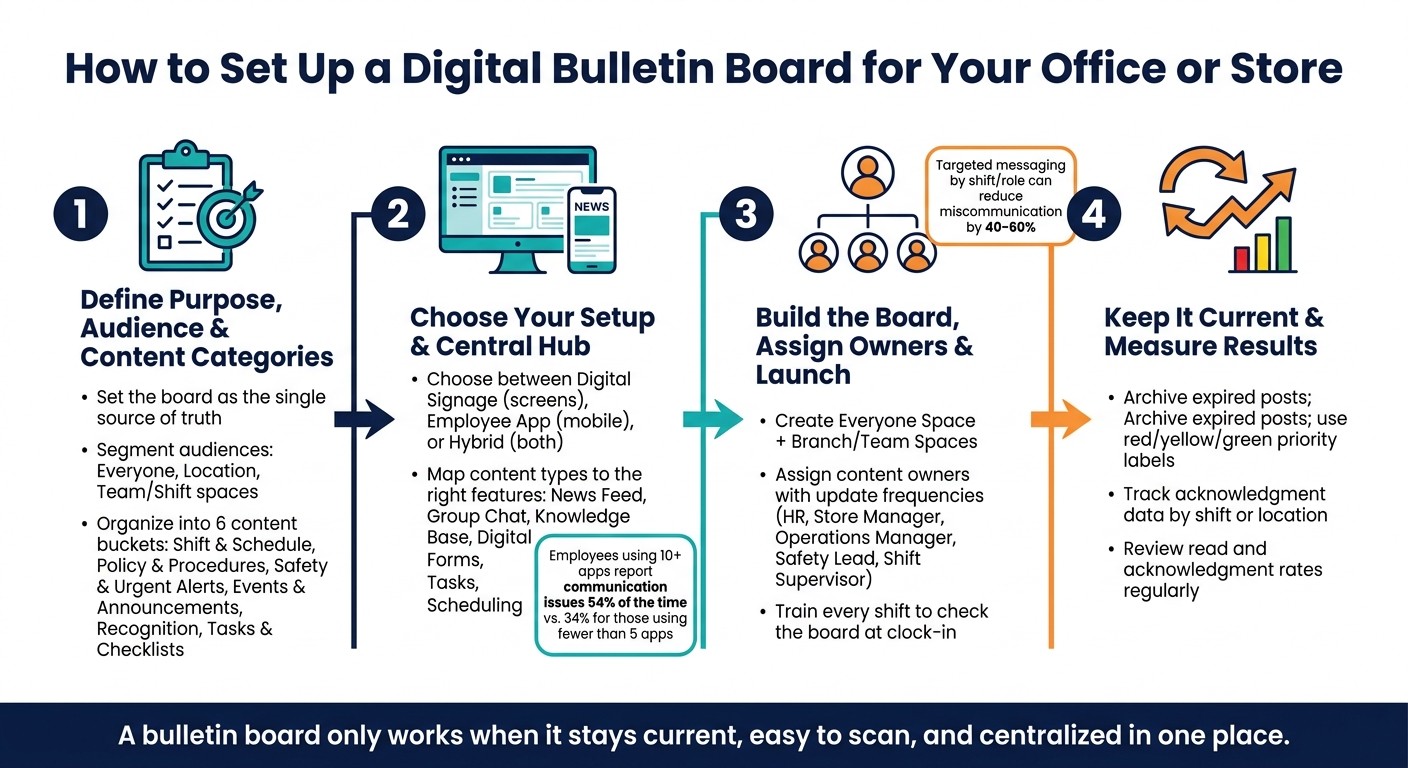
How to Set Up a Digital Bulletin Board: 4-Step Setup Guide
Step 1: define the board's purpose, audience, and content categories
The first time we helped a team set up an internal board at Pebb.io, we made a mistake that looked small on day one and messy by week two: we jumped into layout before we nailed the board’s job.
Here’s the thing: if the board doesn’t have a clear purpose, it turns into a digital junk drawer. A little policy here, a random shout-out there, one urgent update buried under three casual posts. People stop trusting it fast.
So before I touch a screen, a feed, or a form, I define one thing first: this board needs to be the current source of truth for people across shifts, departments, and locations. That single decision shapes everything that comes next.
Choose your audiences and access points
One lesson I’ve learned the hard way: not every message should sit in front of every employee.
A company-wide policy update? That belongs in front of everyone. A shift update for the Warehouse Night Shift? The office team doesn’t need it, and showing it to them just adds noise.
That’s why we usually set this up in three spaces:
Everyone for company-wide announcements
Location spaces for branches like NY Store
Team or shift spaces for groups like Kitchen Team or Warehouse Night Shift
This sounds simple, but it changes a lot. When people only see what matters to them, they pay more attention. When they get flooded with posts that don’t apply, they tune out.
I’ve also seen access break the whole system if you’re not careful. Office staff may check updates on their laptops. Frontline staff may not. Shift workers may only catch updates between tasks. So we pair mobile access with shared screens. That way, frontline staff, office staff, and shift workers all see the same current information instead of three different versions floating around.
Set the core content categories
Once I know who the board is for, I decide what belongs on it.
At Pebb.io, we like to keep this part clean. I organize the board into six buckets: Shift & Schedule, Policy & Procedures, Safety & Urgent Alerts, Events & Announcements, Recognition, and Tasks & Checklists.
Why six? Because people need to scan fast. They shouldn’t have to dig through a pile of mixed updates just to find what affects their shift today.
Let me tell you what happened next on one rollout: once we sorted content into clear buckets, team members stopped asking where things lived. That alone cut down the back-and-forth.
We also map each type of content to the right place inside Pebb:
Policies and SOPs go in Pebb’s Knowledge Base
Day-to-day updates go in the News Feed
Incident reports or inventory counts go in Pebb’s digital forms so the data stays structured
That last part matters more than people think. If someone posts an incident report like a casual update, it gets lost. If inventory counts live in chat, good luck finding them later. Structure saves time.
With the audience and content setup in place, the next move is picking the Pebb features that keep the whole thing together.
Write simple posting rules from the start
I’ve seen good boards fall apart because nobody agreed on posting rules.
Not complicated rules. Just simple ones people can follow without thinking too hard.
My go-to setup is pretty direct: use must-read posts for items that need an Acknowledge click, send push notifications for urgent alerts, and use no-notification posts for casual updates so people don’t burn out on pings.
That last point is a big one. Notification fatigue is real. If every update feels urgent, then nothing feels urgent.
And there’s a clear payoff to getting this right. Targeted messaging by shift or role can reduce miscommunication in frontline operations by 40% to 60%. I’ve seen versions of that play out in practice. Fewer stray messages. Fewer missed updates. Fewer “I thought that was for someone else” moments.
From there, I map those categories into Pebb’s screens, News Feed, chat, and forms.
Step 2: choose the right setup and use Pebb as the central hub

I’ve seen this part trip teams up more than once. On paper, the plan looks fine. Then launch day comes, and people ask the same thing: Where am I supposed to look? That’s when things start to drift.
At Pebb.io, we learned fast that a bulletin board only works if it shows up where employees already are. Not where leaders hope they’ll go. That’s a big difference.
Decide between screens, mobile access, or both
Once I know the content categories and who needs them, I move to the practical part: where will employees actually see this stuff?
Screens work well for on-site visibility. Mobile works well for people who are off shift, out in the field, or nowhere near a desk. In most cases, we use both. That tends to be the sweet spot.
Here’s how I think about the three setups:
Setup | Where It Works | How Employees Access It | When to Use It |
|---|---|---|---|
Digital Signage (Screens) | Lobbies, break rooms, floors | It is visible all day and needs no action from employees | High-traffic on-site spaces |
Employee App (Mobile) | Anywhere | Push notifications, app check-ins | Deskless, off-shift, remote staff |
Hybrid (Screens + App) | On-site and beyond | Both | Most stores and multi-shift offices |
Let me tell you what happened next on one rollout I worked on. The team first leaned hard on screens. That helped in break rooms and near entrances, but night-shift staff still missed updates after they left the building. Once mobile access was added, the gap got a lot smaller. Same messages, better reach.
Once that part is clear, I match each use case to the right tool inside Pebb.
Map bulletin board needs to Pebb features
This is where a lot of teams either make life easy for employees or accidentally make it messy.
At Pebb.io, we try to give each type of content one clear home. That way, employees don’t have to play detective.
News Feed is where employees check announcements, recognition posts, polls, and event updates. Managers can require acknowledgment on critical posts to confirm who has read them.
Group Chat handles fast, real-time clarifications - shift swaps, last-minute changes, quick questions between team members.
Knowledge Base stores permanent content: employee handbooks, safety procedures, SOPs - anything that needs to stay findable long-term.
Digital Forms replace paper-based processes like incident reports, equipment requests, and inventory counts with structured, searchable data.
Tasks cover daily routines - opening and closing checklists, trackable action items - so nothing falls through the cracks.
Shift Scheduling and PTO Management live in the same app, so employees aren't jumping to a separate tool just to check their schedule or request time off.
Here’s the thing: when announcements live in chat, policies sit in a drive, and schedules hide in another system, people stop trusting the system. Not because they don’t care. Because it takes too much effort to find one simple answer.
So we keep it clean. News in the News Feed. Fast back-and-forth in Group Chat. Long-term docs in the Knowledge Base. Daily work in Tasks. It sounds simple, and that’s the point.
With the tools mapped, the next step is assigning owners and launch timing.
Why keeping everything in one app matters
I see this pattern all the time. A team uses one app for chat, another for announcements, a separate scheduling tool for shifts, and a shared drive for documents. At first, it feels neat. Everyone says, “We’ve got a system.”
Then the cracks show.
One manager posts an update in chat. Another uploads a file somewhere else. An employee misses both, then asks a supervisor in person. Multiply that across a full week, a few shifts, and a few dozen employees, and things get messy fast.
The numbers back this up. Employees using more than 10 apps report communication issues at a rate of 54%, compared to 34% for those using fewer than five.
That’s one reason we built Pebb the way we did. News, chat, schedules, forms, and documents all live in one place, so employees don’t have to bounce between tools just to get through the day.
Step 3: build the board, assign owners, and launch it across shifts
Once we mapped the structure, this is where things got practical for us at Pebb.io. The big mistake I’ve seen teams make is overbuilding from day one. They add too many Spaces, too many posts, too many alerts, and within a week people tune it all out.
So we went the other way. We kept it clean, easy to scan, and tied to what people on each shift actually need.
Create a clear structure inside Pebb
Inside Pebb, we use one Everyone Space for company-wide announcements, policies, and general updates. Then we set up separate Branch or Team Spaces for location-specific shifts, local announcements, and daily tasks. We keep permanent documents like SOPs and handbooks in the Knowledge Library (Wiki). For repeatable workflows, like opening checklists, maintenance requests, or incident reports, we use Tasks and Digital Forms.
Here’s the thing: not every team needs access to everything. If a Space becomes a junk drawer, people stop checking it. We learned that the hard way. In one early setup, too many updates landed in the same place, and shift leads started missing the posts that mattered most.
That’s why we keep each Space limited to what that team uses day to day.
Once that structure is in place, we assign clear owners. If nobody owns a Space, it gets stale fast.
Assign content owners and update schedules
This is the simple setup we use to keep things current:
Content Type | Pebb Feature | Owner | Update Frequency |
|---|---|---|---|
Company Policies | Knowledge Library (Wiki) | HR / Admin | As needed |
Location Announcements | News Feed | Store / Branch Manager | Daily or weekly |
Shift Schedules | Shift Scheduling | Operations Manager | Weekly |
Safety / Emergency Alerts | News Feed (Important Post) | Safety Lead | Immediate |
Daily Workflow Checklists | Tasks / Digital Forms | Shift Supervisor | Daily |
Team Recognition | News Feed | All Managers | Weekly |
For critical updates, like safety notices or policy changes, we use urgent posts that require acknowledgment. Employees click Acknowledge, and managers can track who received the update across shifts.
That one feature matters more than it might seem. Let me tell you what happened next when we started leaning on it more: fewer “I never saw that” moments, fewer repeat reminders, and a lot less confusion between morning and evening teams.
For non-urgent updates, we use the no-notification post option so we don’t interrupt people mid-shift. That balance helps a lot. Not every update needs to buzz someone’s phone.
After ownership is clear, the next job is building the habit.
Roll it out so every shift can reach it on screen or mobile
When we launch a board, we train every shift to check it at clock-in. That step sounds small, but it changes everything. If checking the board becomes part of the start of a shift, people don’t have to rely on memory, hallway updates, or someone “probably mentioning it.”
We also keep push notifications reserved for urgent changes, like weather closures or same-day schedule changes. That matters because once every message feels urgent, none of them do.
Targeted messaging by shift, role, or status can cut miscommunication by 40% to 60% in frontline operations. We’ve seen why that works. A closer doesn’t need the same message as the opening crew. A branch manager doesn’t need the same reminder as a new hire. Sending the right update to the right group keeps the board useful instead of noisy.
So when we roll this out, we launch the board on every screen and in the app, then make clock-in checks part of each shift. Push alerts stay reserved for urgent changes like closures or same-day schedule updates.
Step 4: keep the bulletin board current and measure whether it works
Remove old posts and keep messages easy to scan
When we first rolled this out at Pebb.io, I thought the hard part was building the board.
It wasn't.
The hard part came after launch, when we had to keep it clean week after week. Let me tell you what happened next: a few old posts started stacking up, and almost overnight the board felt noisy. People stopped trusting it because they couldn't tell what mattered right now and what had been sitting there for weeks.
That's the part a lot of teams miss. An out-of-date board loses trust fast.
So we kept the fix simple. We archived expired posts by content type. That way, the active feed stayed clean, and we still kept the audit trail intact. Employees could scan the board in seconds instead of digging through stale updates.
We also used red-yellow-green priority labels to make the feed easier to read:
Red for urgent safety or policy updates that need acknowledgment
Yellow for important posts that aren't time-sensitive
Green for casual informational updates that can expire fast
Here's the thing: people don't read bulletin boards when every post looks equally urgent. They read them when the signal is clear and the clutter is gone.
Track engagement and results
Once we got old posts under control, the next step was making sure employees were not just seeing updates, but acting on the right ones.
That was the goal from the start: reach the right people and get action.
Inside Pebb, acknowledgment data shows us exactly who has seen a critical update and who hasn't. I lean on that a lot because it removes guesswork. Instead of hoping a message reached everyone, we can check.
We track acknowledgments by shift or location so managers can spot missed reads fast. That matters more than most people think. If a safety update goes out and not everyone has acknowledged it by the end of the shift, that's a clear follow-up moment. No drama. No hunting through messages. Just a simple signal that tells us where to step in.
I've found that this is where a bulletin board stops being just a place to post announcements. It becomes a working part of daily operations.
Conclusion: a simple blueprint for a bulletin board people actually use
At Pebb.io, we've learned that a bulletin board only works when it stays current, easy to scan, and centralized in Pebb.
That's the blueprint we keep coming back to: define the board, keep it current, and review read and acknowledgment rates so it stays useful.
FAQs
How do I choose what belongs on a digital bulletin board?
I learned this one the hard way at Pebb.io.
Early on, we pushed too many updates to too many people. The result? People tuned out. A warehouse lead in one location saw posts meant for corporate. A night-shift worker got updates that only mattered during the day. The board was active, sure, but it wasn’t useful.
Here’s the thing: if every update looks like it’s for everyone, it ends up feeling like it’s for no one.
That’s why we keep the focus tight. We only put up content that’s relevant, useful, and shaped for each team. We segment updates by job role, location, and department so people see what matters to their shift or site, not a pile of noise they have to sort through on their own.
In practice, that usually means we put the most weight on:
Operational updates
Performance metrics
Safety alerts
Recognition
Engagement
Let me tell you what happened next when we cleaned this up: people started paying attention again. Managers spent less time repeating the same info, and teams had a clearer view of what they needed to act on that day.
With Pebb, we can also automate updates from calendars, HR systems, and scheduling tools, which helps the board stay current and trusted. That matters more than most teams think. If employees spot old shift info or stale notices even once or twice, trust drops fast.
So in my experience, the best employee boards aren’t packed with more posts. They’re filtered, timely, and built around what each team needs right now.
Should employees check the board on screens, phones, or both?
I’ve seen this play out inside Pebb.io more than once: if you rely on just one channel, someone gets left out.
That’s why I’d use both.
Digital screens do a great job in shared spaces like break rooms, warehouses, or busy sales floors. They put key updates right in front of people during the workday, which matters a lot when teams are moving fast and don’t have time to dig through messages.
At the same time, a mobile-first platform like Pebb helps frontline workers stay in the loop wherever they are. They can check schedules, read company news, and handle tasks on the go. And from what I’ve seen, that keeps communication steady across both screens and phones instead of turning into a patchwork mess.
Here’s the thing: different roles, shifts, and locations need different ways to get information. When we use both, we give people a better shot at seeing the same update at the right time.
How often should I update and clean up the board?
I learned this the hard way at Pebb.io: if nobody owns the update rhythm, the board starts looking abandoned fast. And once that happens, people stop trusting it.
So we got strict about cadence.
We update the board on a steady schedule, not whenever someone happens to remember. Our team leads and content owners review operational content every week, while culture and values content gets checked every month. That split matters. Day-to-day info changes fast. Culture content usually has a longer shelf life, but it still needs a regular once-over so it doesn’t feel stale.
Here’s the thing: planning ahead saves a ton of last-minute scrambling. We try to plan posts at least two weeks in advance. That gives us breathing room to line up announcements, clean up wording, and make sure the right people see the right update.
For our knowledge base, we use two review windows:
Monthly for fast-changing resources
Quarterly for compliance documents
Let me tell you what happened next when we started doing this more seriously: we found a bunch of posts and resources that looked fine on the surface, but employees were skipping them completely. That’s where engagement analytics came in. We used the data to spot content people ignored, then removed or reworked it instead of letting it clog up the feed.
At Pebb, this process got a lot easier because we could lean on scheduled posts, targeted groups, and automated updates. That meant less chasing people for manual uploads and fewer moments where old content sat there way too long.
